Invoicing — proforma, final, PDF, UBL
Updated on 2026-10-01
Daily → Invoices
Video narrated in Dutch.

BedFlow automatically creates a proforma for every booking. After the stay it becomes a final invoice with a sequential number, as a PDF and as UBL (for e-invoicing), and it goes to your accounting package if you've connected one (see Accounting integrations).
The proforma
- BedFlow creates it as soon as a booking comes into existence: via your website, a manual booking, a quote or a channel.
- It contains the booking, the guest, the period, the nights with their price, the extras, the tourist tax and the total.
- The status shows whether it's open, partially paid or paid.
- The number starts with a P.
Bookings without a proforma (after an import)
Bookings you transferred from another system (CSV, Cubilis/Lighthouse, Hostaway) don't have an invoice yet. Open the booking in Daily → Bookings and click Create proforma at the top. For many bookings at once: select them in the list and choose the bulk action Create proformas. BedFlow skips cancelled bookings and bookings that already have an invoice.
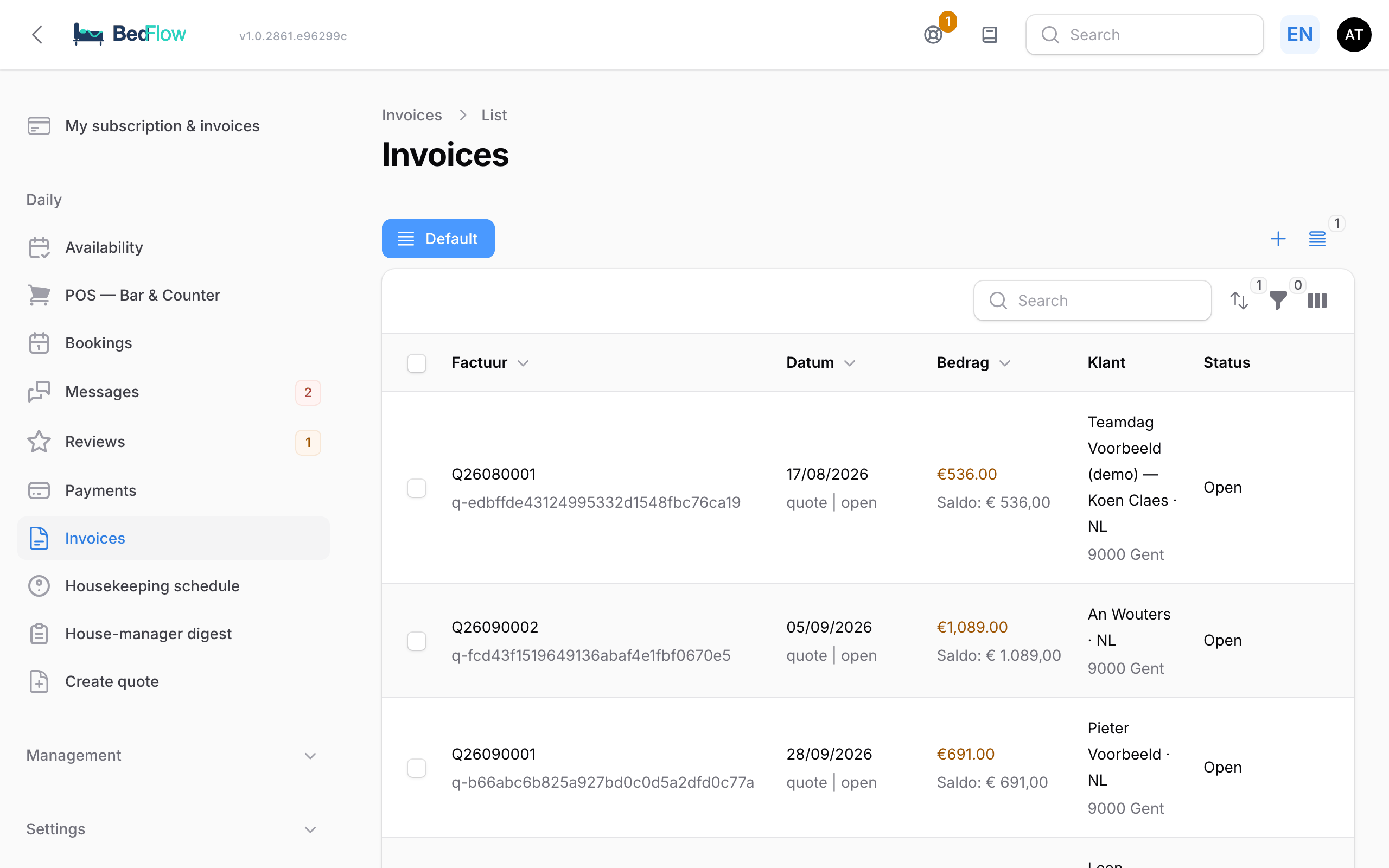
The invoices list
| Column | What you see |
|---|---|
| Invoice | The invoice number, with an icon for the channel. Click the number to open the PDF |
| Date | The invoice date |
| Amount | The total, with the outstanding balance below it |
| Customer | The customer's name, language and address |
| Status | Paid, Partially paid, Open, Unpaid, Overdue or Cancelled, and whether the invoice has already gone to your accounting. Hover over the status to see the payments |
Use the filters to narrow down the list, e.g. to the Type (Final (invoice), Proforma or Credit note), the Payment status, the Payment method or the invoice date. With Only with outstanding balance you see, in one click, all invoices that still have something outstanding, e.g. to send reminders.
What can you do with an invoice?
The actions are shown as icons on the row. Hover over them to see their name.
| Action | When | What it does |
|---|---|---|
| View | always | Shows the invoice in a window |
| Download PDF | if there's a PDF | Downloads the invoice |
| Generate UBL | if there's an invoice number | Regenerates the UBL file |
| Send invoice (again) by email | if an email address is known | Regenerates the PDF and UBL and emails them to the customer |
| Send a friendly payment request | if a balance is outstanding and an email address is known | See below |
| Register payment | if a balance is outstanding | See below |
| Change payment method | if there are manually registered payments | Only corrects the method of a payment, not the amount or date |
| Reverse payment | if there are payments | See below |
| + Item | proforma or quote | Adds a product from your list or a free line, e.g. a forgotten drink |
| Edit lines | proforma, quote and final invoice | Changes the invoice lines; totals, PDF and UBL are recalculated |
| % Discount | proforma or quote | Adds a discount to the invoice |
| Finalise | proforma | See below |
If you select several invoices, you can download them in one go with Download PDFs & UBLs (zip), or delete unnecessary proformas with Delete proformas. Final invoices and credit notes are never deleted this way.
The invoice page
If you click an invoice number under Daily → Payments, you open the invoice page. It shows the overview, the invoice lines, the totals with VAT, all payments (online and manually registered, with method and date) and the status in your accounting. At the top are the buttons + Item, Edit lines, Booking (to the related booking) and Register payment.
Payments on an invoice
Registering a payment
If the guest paid in cash, by card terminal or by bank transfer, or you received the money via a channel, click Register payment and fill in:
- Amount (€): the outstanding balance by default.
- Payment method: Bank transfer, Bancontact, Stripe, Credit card, Cash, Voucher, OTA payout (Booking.com, …) or Other.
- Payment date.
- Description (optional).
The balance is recalculated; if everything is paid, the invoice switches to paid. The guest receives the payment confirmation according to the same rules as for an online payment. See Automatic payment confirmation.
Use OTA payout when a channel such as Booking.com had the guest pay and transfers the money to you. If the channel collected the payment, the booking window under Daily → Availability shows "Paid via Booking.com" (or another channel). See Payment handling per channel.
Reversing a payment
Did you register a payment that never went through (e.g. a Bancontact payment that failed), or have you already refunded it at Stripe or Mollie? Then click Reverse payment:
- Under Which payment?, choose the payment.
- Under Why?, enter the reason.
- Click Reverse.
The amount is then outstanding again. The invoice itself doesn't change: this is not a credit note and nothing is refunded. You refund money yourself at your payment provider first. BedFlow records who reversed the payment, when and why.
Sending a friendly payment request
If something is still outstanding, Send a friendly payment request sends a warm reminder with the outstanding balance and a payment button, without attachments. You can change the text under Management → Messages → Message templates, template Payment Request.
The final invoice
A proforma becomes final in two ways:
- Automatically, every day at 18:00, for stays that ended yesterday or today, are fully paid and have no open tab left in the till. BedFlow then also sets that booking to checked out.
- Yourself, with Finalise on the proforma's row, or when checking out with Convert proforma to final invoice. This is also possible if not everything has been paid yet.
What happens then:
- The invoice gets a sequential number from your property's series: I + year + month + sequence number, e.g. I26100001. The series starts again every month.
- The invoice date becomes today, the due date 7 days later.
- The PDF and UBL are regenerated.
- No email is sent. If you want to send the invoice, use Email invoice to guest when checking out or Send invoice (again) by email in the list.
- An old payment link from the proforma keeps working.
A proforma that isn't fully paid stays a proforma until you finalise it.
Portugal: if your property invoices via InvoiceXpress, you can't finalise a proforma yourself. The fatura-recibo is issued automatically. See InvoiceXpress (Portugal).
PDF and UBL
- PDF: the invoice as your guest receives it. At the top, your property's name (your trading name) appears above the name of your company, if they differ. The colours follow the primary colour of your branding. You fill in your company details, account number and the footer for invoices and proformas under Settings → My property, section Invoicing.
- UBL: the XML file for Peppol and e-invoicing. BedFlow creates it when the invoice is finalised.
If you want a different prefix for your invoice numbers, ask support.
To your accounting
If you've connected an accounting package under Settings → Integrations → Accounting, BedFlow sends your final invoices there automatically, every two hours. Invoices that are already there aren't sent again.
- Yuki: invoices to companies with a VAT number also go via Peppol, if you've switched on the Peppol tile. With Push to Yuki at the top of the list you send the final invoices that haven't been sent yet straight away.
- Billit, Octopus and ClearFacts: see also ClearFacts.
Proformas never go to your accounting.
Credit notes
A final invoice is no longer edited: it is already in your accounting and may have reached the customer via Peppol. If it needs other billing details, for example another company or VAT number, click Credit and re-invoice on the invoice (in the invoice list or on the invoice page). You enter the correct details and a reason, and BedFlow creates:
- a credit note (CN- followed by the invoice number) that fully reverses the old invoice; the old invoice is then cancelled;
- a new invoice with the same lines on the new details. Payments on the old invoice move along.
Both go to Yuki straight away and, if the customer is on Peppol, to the customer via Peppol. The button is there when your accounting is connected through Yuki. If an invoice needs to be credited without a new invoice, ask via support.
Frequently asked questions
My invoice is still a proforma, although the guest has already left. Then it isn't fully paid yet, or there's still an open tab in the till. Register the payment or finalise the invoice yourself with Finalise.
How do I quickly find all invoices with an outstanding balance? Switch on the Only with outstanding balance filter, optionally together with Type = Final (invoice). Under Daily → Payments you see the same invoices with a Payment link.
Can I delete an invoice? A proforma, yes, via the bulk action Delete proformas. A final invoice, no: it belongs in your accounting.