Connecting channels via Channex (channel manager)
Updated on 2026-10-01
Settings → Integrations → Channels
BedFlow sends your availability, prices and restrictions to Booking.com, Airbnb, Expedia and the other channels, and brings in their bookings. For this, BedFlow uses the channel manager Channex. You manage everything in BedFlow; you don't need a Channex account or keys of your own.
You'll come across the name Channex in a few places: on the Connect in Channex button, in the connection window, and in the extranet of some channels, where you choose Channex as the connection (e.g. at Booking.com).
What does the connection do for you?
- Availability: when a booking comes in or you block a room, that room closes on all your channels within a few seconds.
- Prices: what you set under Management → Rates goes to your channels, with a mark-up per channel for the commission (see Commission below).
- Restrictions: minimum stay, closed to arrival or departure and stop-sell are passed on too. See Restrictions.
- Bookings: new bookings from a channel appear in BedFlow automatically, with booking number, customer and proforma. Changes and cancellations too.
- Booking window: how far ahead a guest may book is set under Settings → Integrations → Booking Widget → Configure (field How far ahead may a guest book? (days)). That limit also applies on your channels: the nights beyond it are closed there and the window moves forward by one day every day.
- Photos and facilities: as soon as a channel becomes active, BedFlow sends your property's photos and facilities along. If you change them later, BedFlow updates them.
Which channels have their own tile?
| Channel | Default commission | How do you connect? |
|---|---|---|
| Booking.com | 18% | Enter your Hotel ID, then Connect in Channex — step-by-step plan |
| Airbnb | 15% | Log in to Airbnb with Connect with Airbnb — step-by-step plan |
| Expedia (with Hotels.com) | 20% | Enter your Property ID, then Connect in Channex — step-by-step plan |
| Vrbo | 15% (typical) | Log in in a secure window with Connect with Vrbo — step-by-step plan |
| Google Hotel Ads or Google Vacation Rentals | 0% | Enter your Business Profile ID — step-by-step plan |
| OpenGDS | 22% | Enter your Hotel Code — step-by-step plan |
| HRS | 15% (typical) | Enter your Hotel ID — step-by-step plan |
| Check24 | 10% (typical) | Enter your Hotel ID — step-by-step plan |
| Weekendesk | 17% (typical) | Enter your Property ID — step-by-step plan |
The commission is a starting value. You adjust it per channel in that channel's window.
Connecting a channel: how it works
The steps differ slightly per channel; each channel's step-by-step plan is linked in the table above. The broad outline is always the same.
Beforehand
- You have an active account with the channel (extranet or partner portal).
- In BedFlow you have at least one room and a base price. If those are missing, BedFlow reports Basics needed first and nothing happens yet.
The steps
- Go to Settings → Integrations and click Settings on the channel. The ‹channel› configuration window slides open.
- In the Channel connection section, enter the number the channel knows you by (e.g. Booking.com Hotel ID) and click Save. For Airbnb and Vrbo there is no number: there you click Connect with Airbnb or Connect with Vrbo straight away.
- Is this your first channel? Then BedFlow puts your property on the channel manager itself at that moment, with your room types, prices and availability. When you request a channel for the first time, BedFlow also switches on that channel and all your active rooms, so that you can link every room in the next step. If you don't want a room on this channel, untick it afterwards in Room mapping.
- Click Connect in Channex. The Channel connection window opens, with the channel manager's connection form. Go through the tabs General Settings, Mapping and Channel Settings (sometimes also Readiness Check). In Mapping you link each room and each rate to the right room on the channel: anything that isn't mapped is not sent.
- At the bottom, click Done — close and refresh status. BedFlow looks up the new connection and switches it on. If you forget that click, BedFlow links it automatically within a few minutes.
- The channel confirms the connection on its side, within a few hours to a few business days depending on the channel. After that, the status shows Active — your channel is live.
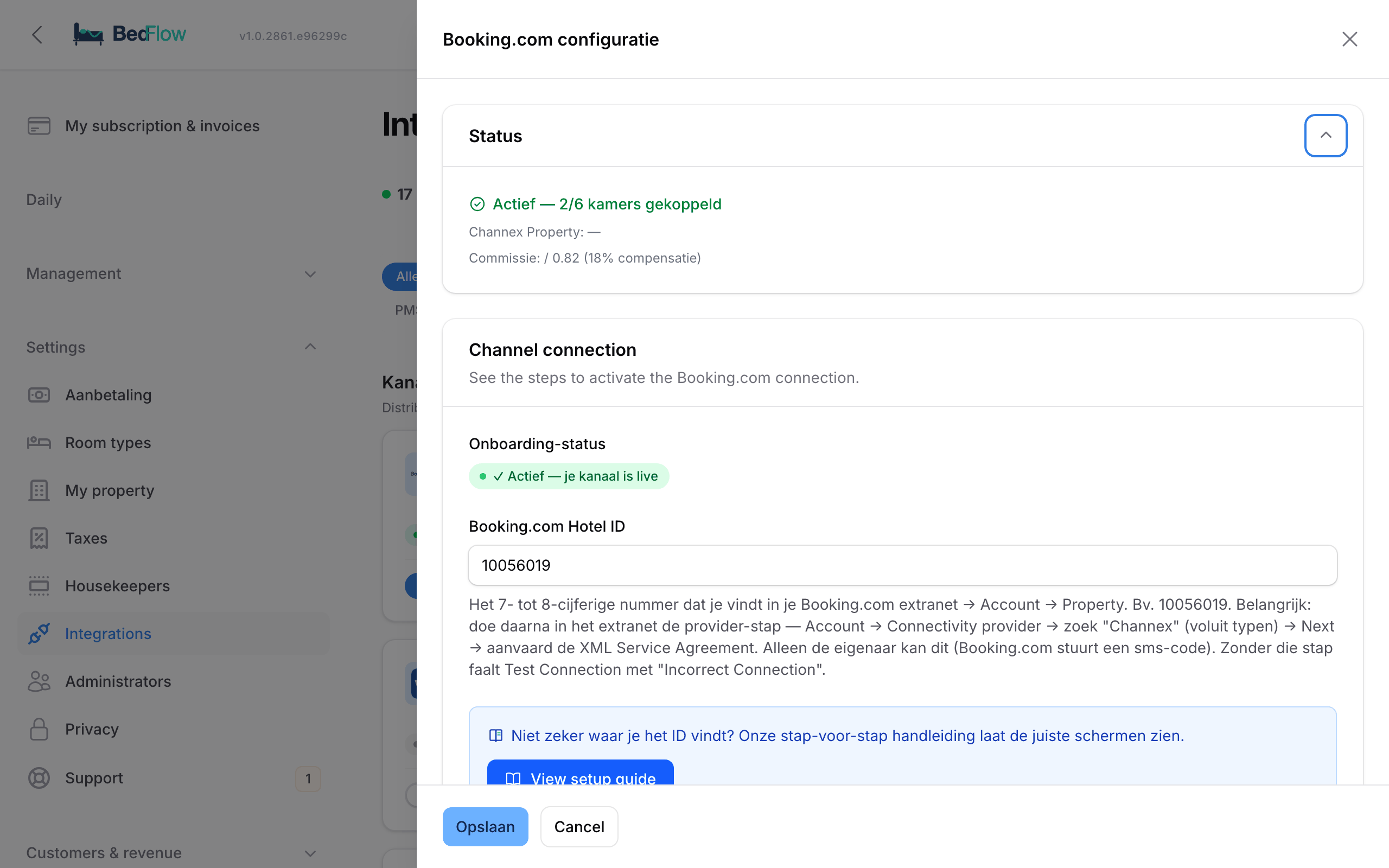
What's in a channel's window?
| Section | What you'll find there |
|---|---|
| Status | Whether the channel is active and how many rooms are linked, e.g. "Active — 4/5 rooms linked". |
| Channel connection | The Onboarding status, the field for your number at the channel, and the buttons Connect in Channex, Refresh status and Map rooms. View setup guide opens the step-by-step plan. |
| Commission | Divisor, Channel active, Channel collects payment and Online prepayment required. |
| Room mapping | Per room: which room on the channel belongs to it (OTA room) and whether the room is on this channel (Active). |
The onboarding status
| Status | Meaning |
|---|---|
| Not connected yet — use the button below | Nothing has been requested yet. |
| Ready to connect — click "Connect in Channex" below | Your number has been saved; now go through the connection window. |
| Waiting for confirmation via the OTA extranet | The connection has been created and is waiting for the channel. |
| Active — your channel is live | Prices, availability and bookings are flowing. |
| Failed — see error message below | Something went wrong; the reason is shown below. |
Do you get the message Channel discovered — mapping not yet complete? Then open the connection window again, fill in the Mapping tab completely and click Done — close and refresh status again.
Adding rooms or remapping later
Are you adding a room, or do you want to link a room to a different room on the channel? You can do this without leaving BedFlow.
- Create the room in BedFlow (Settings → Room types).
- On Settings → Integrations, open the channel with Settings, set the room to Active in Room mapping and click Save. BedFlow prepares the room at the channel manager in the background.
- Open the window again and click Map rooms. You get the same connection window as for the first connection; link the new room in the Mapping tab.
- Click Done — close and refresh status.
The Map rooms button appears as soon as a channel is connected, for Airbnb and Vrbo too.
Commission per channel
Channels keep a commission. With the Divisor you make sure you still end up with your own price after that commission: BedFlow divides your price by the divisor. For Booking.com the default is 0.82 (18% commission): a room of €100 is then listed on Booking.com at €121.95.
You adjust the divisor in the channel's window, in the Commission section. You'll see the same rule under Management → Rates, in the Rate profiles of the Channel type (e.g. "Booking.com commission"). See Rate management.
The same section contains Channel active (off = BedFlow no longer sends anything to that channel) and the two toggles about who collects the payment. We explain those in Who collects the payment?.
Adding a channel that doesn't have a tile yet
Under Settings → Integrations you'll find the common channels (Booking.com, Airbnb, Expedia, Vrbo, Google, OpenGDS, HRS, Check24, Weekendesk). Via the channel manager, BedFlow reaches many more — the full list is in All integrations. Missing one, e.g. Hotelbeds, Reconline or Trip.com?
- At the top of the Channels category, click Add channel.
- Type the name and choose the channel in the list (group Via the channel manager). Click Add tile: the tile appears straight away.
- Open the tile with Settings, enter your property ID at that channel (from their extranet or partner portal) and click Save.
- Click Connect in Channex, choose the channel in the list and go through the window as described above. Then click Done — close and refresh status.
- The channel confirms the connection on its side, usually within one to three business days; the status switches to Active by itself.
OpenGDS partners (Natuurhuisje, Weekendjeweg.nl, HotelSpecials, Vipio, …) do not get their own tile. If you choose one in the Via OpenGDS group, BedFlow explains how to do it instead: you activate the partner in your OpenGDS account and connect the OpenGDS tile here — step-by-step plan in Connecting OpenGDS. When you do, ask the partner for a connection with the channel manager Channex, not with BedFlow: the partners don't know BedFlow as a connection.
Content & policies for your channels and Google
Settings → My property → Content & policies (OTA / Google) section
Some channels, and Google in particular, refuse a property without a description, house rules and cancellation policy. You fill in those details in this section. The section is collapsed by default; click its title to open it.
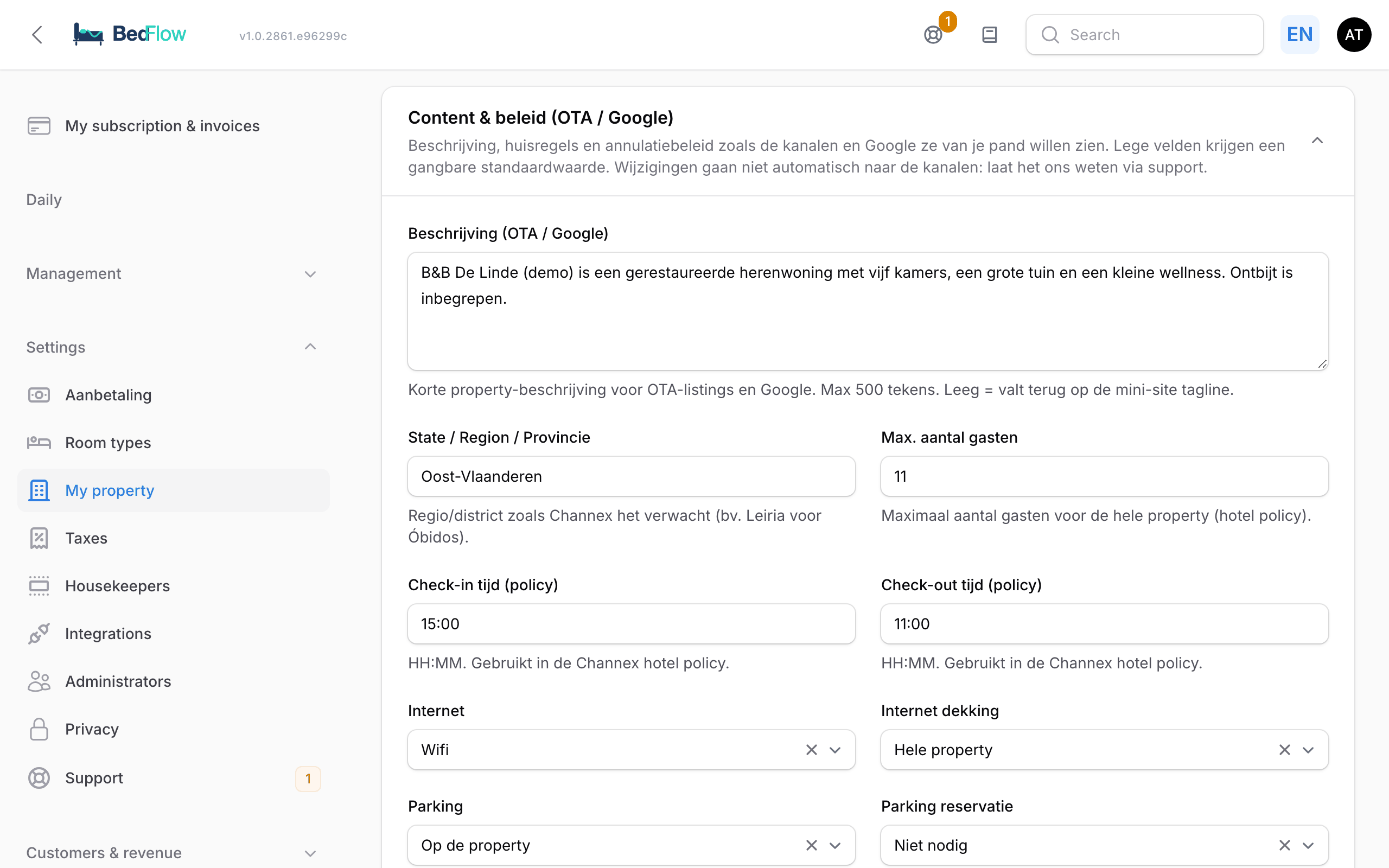
| Field | Default | What you fill in |
|---|---|---|
| Description (OTA / Google) | empty | A short description of your property, 500 characters maximum. Empty = the tagline of your mini-site. |
| State / Region / Province | empty | Your province or region, e.g. East Flanders. |
| Max. number of guests | 3 | The maximum for the whole property. |
| Check-in time (policy) and Check-out time (policy) | 15:00 and 11:00 | In the format HH:MM. |
| Internet and Internet coverage | Wifi, Entire property | |
| Parking, Parking reservation and Private parking | On the property, Not needed, on | |
| Pets | On request | Allowed, Not allowed, On request or Assistance animals only. |
| Smoking | Non-smoking | |
| Pet — non-refundable fee and Pet — refundable deposit | €10 and €10 | |
| Cancellation — deadline (days) | 7 | Up to how many days before arrival the cancellation rule applies. |
| Cancellation — penalty | 100% | The share of the price the guest pays for a later cancellation. |
| Guarantee / deposit | 30% |
Check the penalty in particular: by default it is set to 100%, so a guest who cancels after the deadline pays everything.
Good to know: when you save, these details are not yet sent to your channels automatically. Once you have filled them in or changed them, let support know; we'll pass them on for you. Your property's regular details (name, address, check-in times, logo) and your facilities are sent along automatically when you save.
Checking yourself whether the connection works
At the top right of Settings → Integrations there are two buttons:
- Test connection — immediately checks whether the connection with the channel manager works and shows how many room types and rate plans are found for your property. If something isn't right, the message tells you what's wrong. If you get Channel manager not yet connected, you haven't requested a channel yet.
- Synchronise channels — sends availability and prices for the next 365 days to all your connected channels again. You follow the progress in the bar at the top of the page.
First Test connection, then Synchronise channels. If something still doesn't come through properly, email support@bedflow.eu.
Frequently asked questions
Do I need to create a Channex account myself? No. BedFlow puts your property on the channel manager when you request your first channel. You don't need to log in anywhere outside BedFlow and your channel's extranet.
Can I still change my prices in the channel's extranet? Preferably not. BedFlow is the source: at the next synchronisation, BedFlow overwrites whatever you changed in the extranet. Change your prices under Management → Rates.
How do I pause a channel temporarily? Switch off the toggle on the tile, or Channel active in the channel's window. BedFlow then no longer sends anything to that channel. Existing bookings simply remain; the channel keeps whatever was last sent to it. When you switch the toggle back on, BedFlow takes over again.
I see "Configure this channel first" when I switch on the toggle. The channel doesn't have any settings yet. Open it with Settings, fill in what is needed and click Save.
Which Google channel do I get? That depends on the property type: a holiday home gets Google Vacation Rentals, a B&B or hotel gets Google Hotel Ads. See Google Hotel Ads and Vacation Rentals.
A channel without a connection to the channel manager? If the channel works with a calendar link (.ics), use iCal feeds.