Managing customers (debtors)
Updated on 2026-10-01
Management → Customers
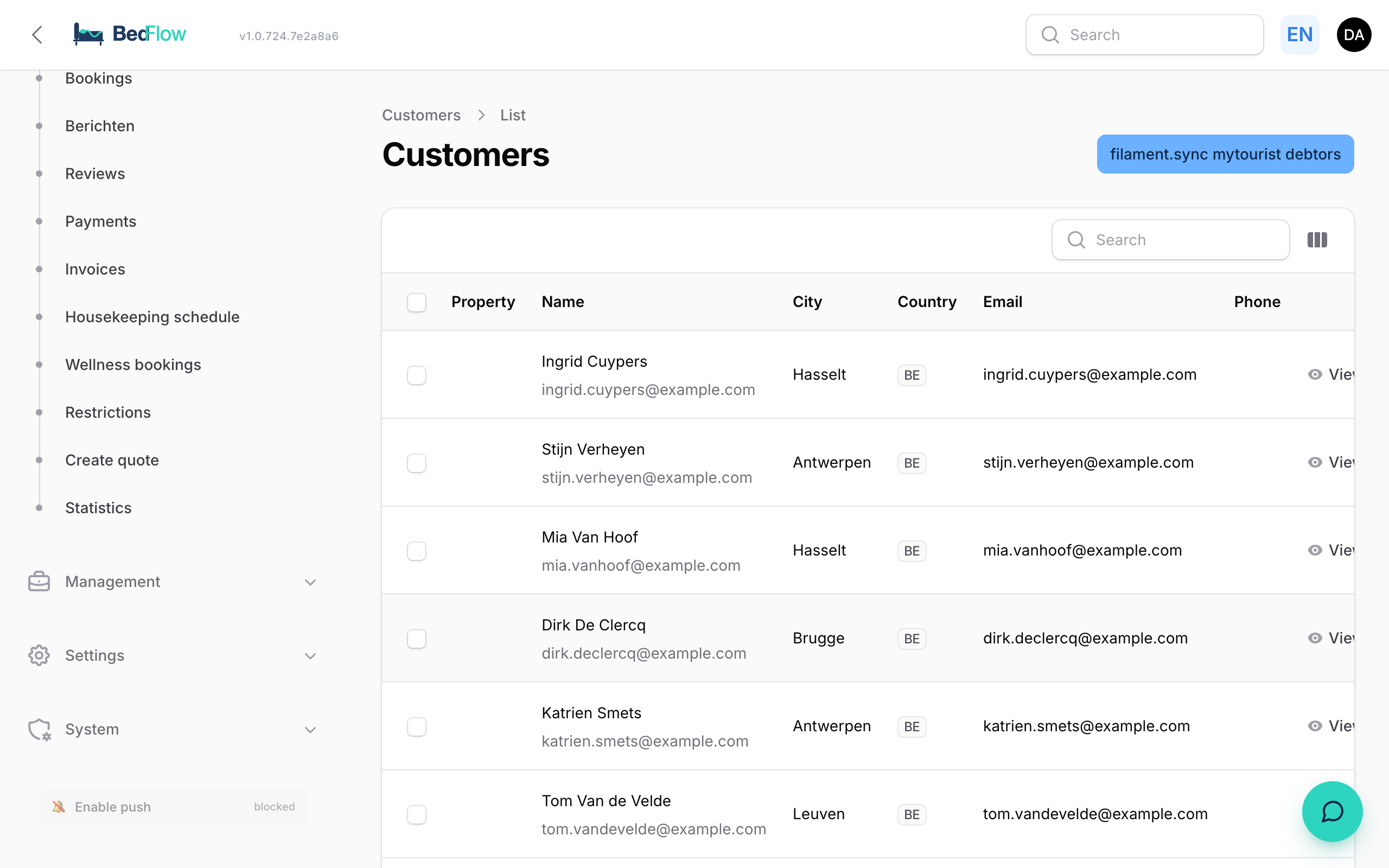
This is where all your customers (debtors) are listed: the guests and companies in whose name your bookings and invoices are made out. You will find their contact details, their billing details and their history with you.
How does a customer end up in the list?
You don't need to create customers yourself. BedFlow creates a customer record as soon as someone books or buys:
- with a booking via your website, a channel or a manual booking;
- with a quote;
- with a wellness reservation;
- in the POS, if you fill in a name or VAT number under In the name of;
- with the Bar QR: all bar sales are recorded under one fixed customer, Bar sale (QR).
If you want to make out a booking's invoice to a company, fill in the Invoice to section on the booking. Those details are saved on the customer record. See Manual booking.
The list
| Column | What you see |
|---|---|
| Name | The name or company name, with the email address below it |
| City and Country | From the address |
| Email and Phone | The contact details |
Using the columns button, you can switch on extra columns such as Postpaid, Mobile or Bank account. The newest customers are at the top.
Searching
The search bar searches all fields at once: name, company name, address, email, phone, mobile, VAT and KBO number and bank account. Type "Vannerom" and you find the surname, type "+32470" and you find the mobile number, type "BE0123" and you find the VAT number.
The customer record
Click a customer to open their record:
| Block | What you see |
|---|---|
| Overview | Name, type (Company or Private individual), email, phone, mobile, number of invoices and total revenue |
| Company | Company name, Tax number (VAT / NIF) and KBO number |
| Note | Your internal note |
| Contact | The address |
| Recent invoices | The last 5 invoices with number, date, type, total and status |
| Recent bookings | The last 5 bookings with period, room(s), channel, status and total. Click the booking number to go to the booking |
Handy for returning guests: you can see straight away when they stayed and what they paid.
Editing a customer
On the record, click Edit. The form has these sections:
| Section | Fields |
|---|---|
| Person | First name, Surname, Email, Phone, Mobile |
| Billing | Tax number (VAT / NIF): a company's VAT number, or the personal NIF of a Portuguese guest who wants an invoice in their name. And the checkbox Pays by bank transfer on invoice (postpaid) (see below) |
| Company | Company name and KBO number. Only fill in if the customer is a company |
| Note | An internal note |
| Contact | Address, Postcode, City, Country |
| Meta & integration | Including Bank account |
Click Save changes.
If you enter a VAT number while the postcode or city is still empty, BedFlow looks up the company's address in the European VAT database (VIES) and fills it in.
Customer details in one place
If you change a customer's email address, mobile or phone number or name, BedFlow also updates it on their current and upcoming bookings. That way, the invoice email at check-out and the messages go straight to the right address.
- A booking on which you deliberately entered a different address or number is left untouched.
- If you clear a field on the customer record, the value remains on the bookings.
- Checked-out and cancelled bookings do not change.
The same happens if you change the details via the guest name on an arrival card in Daily → Availability.
Postpaid: paying by bank transfer on invoice
Do you have an agreement with a customer that they pay afterwards on invoice (e.g. a company with its own discount code)? Then tick Pays by bank transfer on invoice (postpaid) in the Billing section of their record. From then on:
- If that customer books via your website with the email address on their record, the booking is linked to that record; no duplicate customer is created. A booking with a different email address follows the normal payment flow, even with the same VAT number: a VAT number is public and must never unlock a stay without prepayment.
- Their bookings get no online payment button and no payment deadline: no reminder, no automatic cancellation.
- Their confirmation email says that they pay by bank transfer after receiving the invoice. If they do open the payment page, they see your property's bank transfer details (if you filled them in) or a message that they pay by bank transfer. See Paying by bank transfer.
- At check-out, Register outstanding amount as paid is switched off by default. Only record the payment once the money is in your account.
Deleting a customer
Select the customer in the list and choose Delete selected, or click Delete on the edit page. The customer record is then permanently gone. Bookings and invoices remain, but without a link to that customer.
If you want to have a guest removed for privacy reasons, use the privacy page below: it takes the statutory retention period for invoices into account.
Guest privacy requests (GDPR)
Customers & revenue → Customers → GDPR / Privacy
Does a guest ask which data you hold about them, or ask you to erase it? You handle that on this page (titled GDPR — Data Subject Requests). You have access as the account owner with write permissions on the settings.
- Under Search data subject (guest), fill in the guest's Email and/or Phone number and click Search.
- Under Results, you see how many customer records, bookings, emails and messages BedFlow found.
- Choose what to do:
| Button | What it does |
|---|---|
| Export (ZIP) | A ZIP file with all of that guest's data, to send to them |
| Anonymise | Replaces the personal data with anonymous values. Booking dates and amounts remain, so your figures stay correct. Cannot be undone |
| Delete | Erases everything permanently. This is not possible as long as there is an invoice less than 7 years old (statutory retention obligation); in that case choose Anonymise |
You export your own data as a BedFlow user under Settings → Privacy.