Housekeeper portal — what does the cleaner see?
Updated on 2026-10-01
Settings → Housekeepers → Open portal (test) (to see for yourself what your cleaner sees)
Your housekeeper opens their personal link on their phone. They see one card per room with what needs doing today. No guest names, no phone numbers, no email addresses and no booking details: only the room, the status and the times.
How to create and send the link is explained in Activating the housekeeping module.
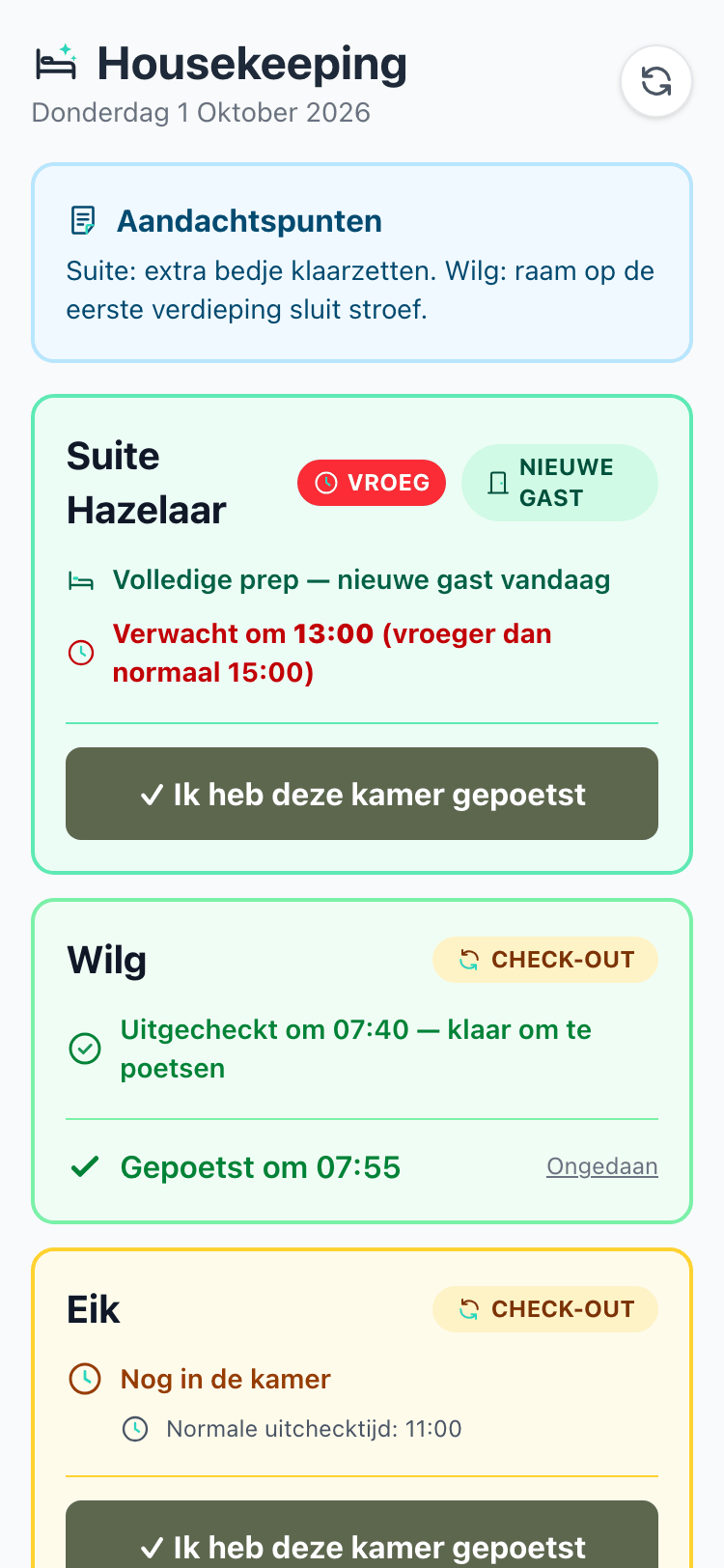
At the top
- The title Housekeeping with today's date and a Refresh button.
- The Points of attention box, if you filled them in with the cleaning checklist. That way your team reads those instructions first at every clean.
The room statuses
Each card has a colour and a label:
| Label | Colour | What it means |
|---|---|---|
| CHECK-OUT | amber | The guest leaves today. The card shows whether they have already checked out ("ready to clean") or are still in the room, with the breakfast time and when the room is likely to be empty, and the normal check-out time |
| BACKLOG | orange | The guest left in the past 14 days, the room hasn't been cleaned since and no new guest came in between. A full clean is needed |
| STAYS | blue | The guest is staying one or more nights: a light clean. With the breakfast time, if known |
| NEW GUEST | green | A new guest arrives today: full preparation. With the expected arrival time or the normal check-in time |
| EMPTY | grey | No booking today. Possibly time for a thorough clean |
If a new guest arrives earlier than your normal check-in time, the card gets the red EARLY label, with the expected time.
In which order are the rooms listed?
From most to least urgent:
- New guest arriving early
- Check-out where the guest has already left
- Backlog
- Check-out where the guest is still in the room
- New guest at the normal time
- Stays
- Empty
Marking a room as cleaned
Below each card is the button I have cleaned this room. One tap and the clean is recorded, with who did it and when. The card turns green and shows "Cleaned at" with the time.
Made a mistake? With Undo next to it, they can reverse it. If they had already filled in the checklist for that room, those answers are kept.
The checklist
If you put together a cleaning checklist, there is a Checklist block per room at the bottom of the portal. There they tick what needs restocking, fill in quantities, add photos and save with Save checklist. This can be done before and after marking the room as cleaned.
Always up to date
The page refreshes itself every 30 seconds. When you check a guest in or out, your housekeeper sees it within half a minute.
Privacy
- The link contains a long, random code: it can't be guessed.
- You can create a new link for each housekeeper; the old one then stops working.
- Guest details are never visible.
- If you set a housekeeper to inactive or switch off the module, the link stops working immediately.
Good to know
- Combination rooms (a unit you also sell as separate rooms) don't appear as a separate card: your cleaner sees the physical rooms.