Restrictions — min. nights, arrival and departure days, stop sell
Updated on 2026-10-01
Want to control when guests can arrive, leave or book, or close a period entirely for renovations or a weekend to yourself? You do that under Management → Rates, tab Restrictions.
The Restrictions tab is included in the Starter plan and higher. On Seizoen and Micro the tab is there too, with the Upgrade badge: click it for an explanation and the plan that unlocks it.
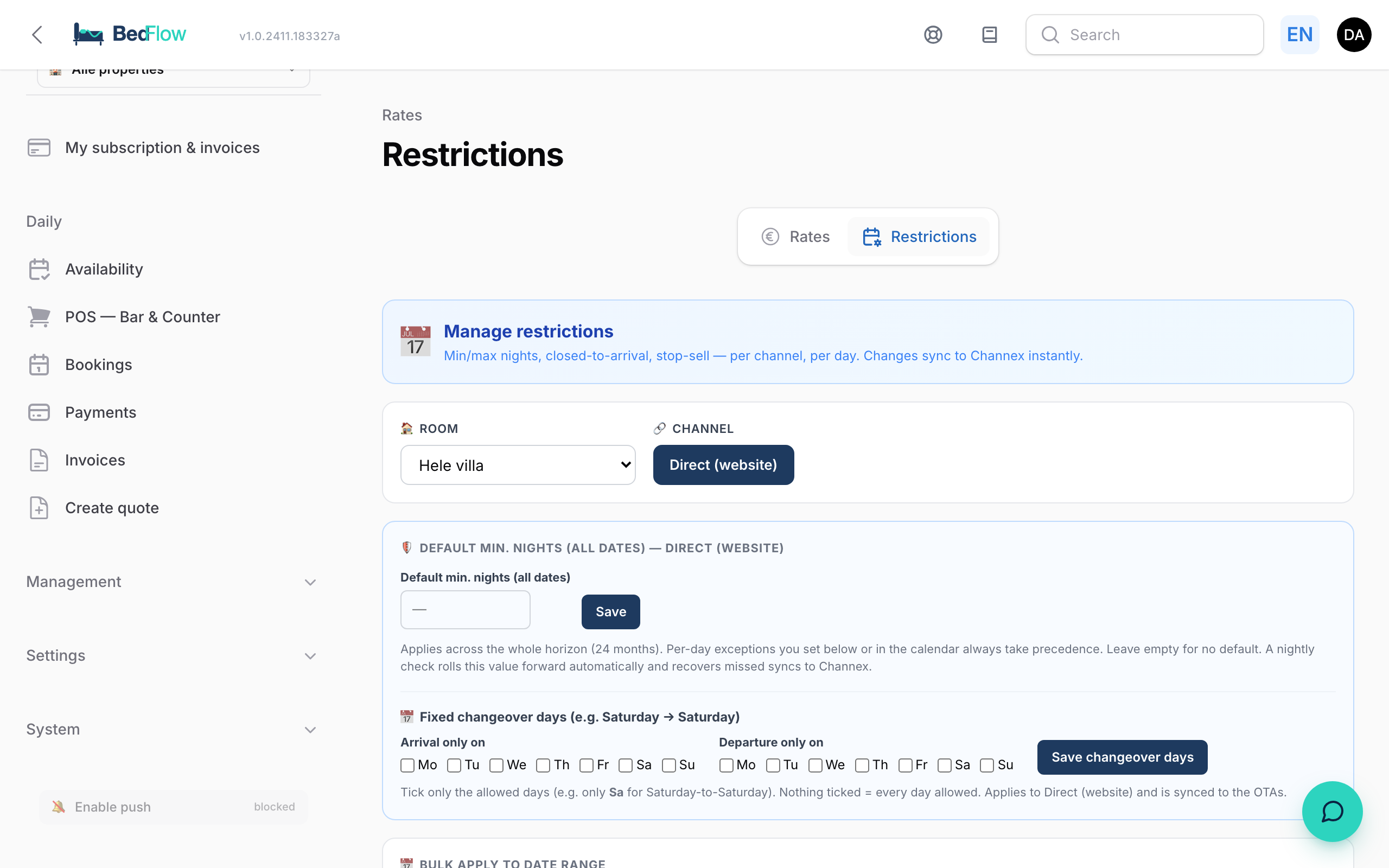
Choosing the room and channel
Restrictions always apply to one room on one channel. At the top you choose:
- Room: a drop-down list of your rooms (public name).
- Channel: tabs. Direct (website) is always first and applies to your own booking site. It's followed by the channels the room is connected to, e.g. Booking.com.
Below that you see a month calendar. Saturday and Sunday are yellow, today has a border, a day with a restriction turns red and a public holiday gets a purple dot.
The types of restrictions
The legend below the calendar sums them up:
| Restriction | Meaning |
|---|---|
| Stop sell | The day is fully closed for sale. No new booking can include this night. In the calendar: a red crossed-out circle. |
| No arrival (CTA) | Closed to arrival: nobody can arrive on this day. A stay that starts earlier may run through it. In the calendar: the crossed-out circle with an arrow after it. |
| No departure (CTD) | Closed to departure: nobody can leave on this day. In the calendar: an arrow with the crossed-out circle after it. |
| Min. nights | Minimum length of stay, e.g. "≥2n". At arrival applies to anyone arriving that day; through also applies if the day falls in the middle of the stay. |
| Max. nights | Maximum length of stay, e.g. "≤7n". |
Setting up one day
- At the top, choose the room and the channel.
- Click a day in the calendar. The Set restrictions window opens.
- Tick what you need: Stop sell, No arrival allowed, No departure allowed.
- Optionally fill in Min. nights / at arrival, Min. nights / through or Max. nights / long stay.
- Click Save + sync.
On the Direct channel, the restriction applies immediately on your booking site. For Booking.com and the other channels it goes out within about 30 seconds; allow a few minutes before the channel shows it.
Setting up a period in one go
Use the Bulk apply to date range block:
- Fill in From and To.
- Tick: Stop sell, No arrival (CTA) and/or No departure (CTD).
- Optionally fill in Min stay (arr.) (minimum at arrival), Min stay (thr.) (minimum through) or Max stay.
- Click Apply. All days in the period are updated for the chosen room and the chosen channel.
Quick actions
Quick actions are fixed rules: one click switches them on, another click switches them off. They apply immediately to all future dates, next year included, and are passed on to your channels automatically. An active quick action is shown in a dark colour. What you set per day also keeps applying: the strictest rule wins.
- Weekend · min 2 nights and Weekend · min 3 nights: a minimum stay for anyone arriving on Friday or Saturday.
- No arrival on public holiday: guests can't arrive on an official public holiday.
- No departure on public holiday: guests can't leave on an official public holiday.
- Clear month: switches off Stop sell, No arrival and No departure for the month shown. A minimum or maximum number of nights stays in place (see the frequently asked questions).
Quick actions and fixed changeover days aren't shown in the calendar cells; they apply in the background.
Public holidays: choose your countries
Next to Public holidays of: you tick which countries count: België, Nederland, Deutschland and France. BedFlow knows the official public holidays of those countries, including Easter, Ascension Day and Whitsun, and recalculates them every year. If you switch on a public holiday rule without choosing a country, BedFlow uses your property's country. They're the same public holidays as in the holiday profiles on the Rates tab.
Default min. nights (all dates)
Want a minimum stay that always applies? Fill in Default min. nights (all dates) (1 to 30) and click Save.
- BedFlow immediately sets that minimum on every day from today up to 24 months ahead, for the chosen room and the chosen channel. A minimum you previously set per day is overwritten in the process. So set exceptions after saving the default.
- Every night BedFlow rolls the value forward by one day and repairs any missed synchronisations with your channels.
- If you empty the field and save, BedFlow stops rolling anything forward. Days that already have a minimum keep it.
Fixed changeover days
Do you rent from Saturday to Saturday? In the Fixed changeover days (e.g. Saturday → Saturday) block, tick the permitted days under Arrival only on and Departure only on and click Save changeover days. Nothing ticked = every day allowed. More in Setting up BedFlow for holiday homes.
Only your own website
The Direct (website) channel also works without connected channels: restrictions on that tab apply immediately in your booking widget. If you haven't connected any channels, you only see that tab, and that's enough to manage minimum stays, changeover days and closing days for your own site.
A phone booking you enter yourself ignores restrictions: you decide.
Frequently asked questions
Will I lose existing bookings that fall within this period? No. Restrictions only apply to new bookings.
What's the difference between stop sell and CTA + CTD together? Stop sell closes the night completely. CTA + CTD together only prohibit arrival and departure on that day: a longer stay may still run through it. Handy around a busy day on which you don't want any check-ins or check-outs.
How do I remove a minimum number of nights? Set it to 1: then any length of stay is possible again. An empty number field or Clear month doesn't remove an existing minimum.
I don't see the Restrictions block, or it says "Upgrade". Restrictions are included in Starter and higher. See Subscription & billing.
How quickly does a restriction show up on Booking.com? BedFlow sends changes in batches, within about 30 seconds. The channel usually shows them after a few minutes.
Related
- Setting up BedFlow for holiday homes: changeover days and minimum stay in practice
- Rate management: the prices on the Rates tab
- Blocking rooms: quickly closing a day or period in the room overview