Creating a quote
Updated on 2026-10-01
With Daily → Create quote you make a price proposal for a request that doesn't fit a regular booking: a company looking for rooms for its staff, a long stay at an agreed price, a group that wants to book two weekends or a package. When the customer accepts the quote, BedFlow automatically turns it into bookings.
Quotes are included in the Starter plan and higher. On Seizoen and Micro the menu item is there with the Upgrade badge.
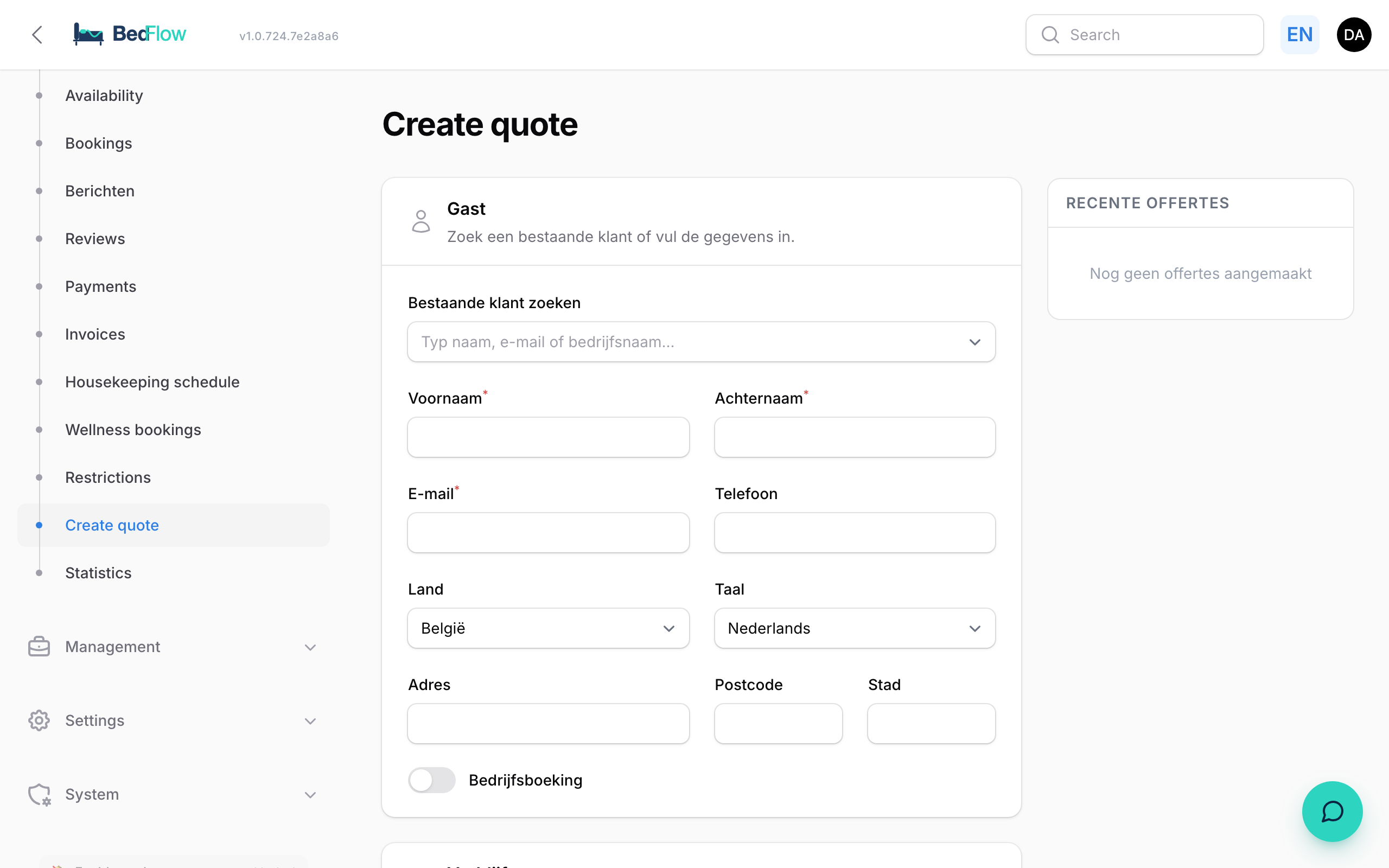
Creating a quote
Guest
Search for an existing customer with Search existing customer (name, email or company name), or fill in the details: First name, Last name and Email are required. Also choose the Language: the customer receives the quote and the email in that language. For a company, switch on Company booking and fill in Company name and VAT number.
Stay
- Quote valid (days): 7 by default, 30 at most. After that period the quote is marked "Expired".
- For each stay, choose Arrival and Departure. Use Add stay to add a second period; on acceptance, each stay becomes a separate booking.
- For each stay, use Add room to add one to six rooms, with Adults and Children. Next to the room you see a green dot (Available) or a red one (Occupied) for that period.
- Price/night (optional): empty = the automatic rate, with daily, weekend and seasonal prices and occupancy prices, as for a regular booking. If you type an amount, e.g. €120 for a company agreement, that amount applies.
Global extra discount
Want to give a discount on top of the regular price? Open the Global extra discount block and enter a percentage under Extra discount, e.g. 15.
- The discount applies to all overnight stays together, on top of any length-of-stay discount.
- It appears at the bottom of the quote as a separate line, e.g. "Extra discount (15%)", with the same VAT rate as the overnight stays.
- Tourist tax and extras are not affected.
Extras and remarks
- Extras: use Add product to add products, with a Quantity and optionally your own Description (optional).
- Remark: an Internal remark (the customer doesn't see it) and a Footnote on quote (at the bottom of the PDF).
Saving
Click Create quote. BedFlow creates the quote with its own number and a public page. The notification contains two buttons: View quote and Copy link. Paste the link into an email or WhatsApp message, or send the quote from BedFlow (see below). Nothing is sent automatically.
You don't fill in the deposit: BedFlow calculates it according to Settings → Deposit (see Deposit).
Length-of-stay discount: applied automatically
If you have a length-of-stay discount (e.g. −10% from 7 nights), the quote applies it automatically to automatic rates, just as for a booking. The room is shown at the full rate, with a separate line below it: "Length-of-stay discount −X%", in the customer's language, on the web page and the PDF.
If you type in a price per night yourself, it stays exactly as you typed it, without any extra discount.
Sending and following up
On the right of the page you'll find Recent quotes: your last 20 quotes with customer, number, amount and status Open, Accepted or Expired. Below that you see until when the quote is valid, when it was sent and how often the customer viewed it.
| Button | What |
|---|---|
| Pencil | Edit (only for an open quote). |
| Paper plane | Send, or resend, to the customer's email address. BedFlow asks for confirmation first. |
| Eye | View as customer. |
| Chain link | Copy quote link. |
The customer receives an email in their language with a button to the quote. You can change the text of that email under Management → Messages → Message templates, template Quote Sent.
As soon as the customer opens the quote for the first time, you receive a notification in Telegram: the moment to follow up. Your own visits don't count.
Your quotes also appear among your documents under Daily → Invoices. There, the chart icon shows how often and when the customer viewed them.
Changing a quote
As long as the quote hasn't been accepted, you can change it: click the pencil under Recent quotes, or click the quote in Daily → Invoices. You land in the form; after making your changes, click Update quote. You can no longer edit an accepted quote: bookings are already attached to it.
What does the customer see?
A public quote page, which also works well on a phone, with:
- for each stay, the dates, the rooms (with "Available" or "Unavailable") and the amount;
- the discount lines, the total incl. VAT and the deposit;
- until when the quote is valid;
- Download PDF and Edit details;
- the Accept quote & book button, with the statement that they agree to your terms and conditions and cancellation policy (the links from Legal links, see The booking widget).
If a room is no longer available in the meantime, the customer can't accept the quote.
What happens on acceptance?
- For each stay, BedFlow creates a booking with a proforma, at the prices from the quote.
- The customer goes straight to the payment page, with the deposit already filled in (they can also pay the full amount). With several stays, they pay one deposit for the whole quote.
- The regular booking confirmation email goes out.
Does the customer accept by email or phone? Then open the quote yourself (eye icon or View quote) and click Accept quote & book. BedFlow creates the bookings and automatically emails the customer the payment link for the deposit (or the full amount if there's no deposit).
Frequently asked questions
Can I put several periods in one quote? Yes. Click Add stay. Each stay gets its own dates and rooms and becomes a separate booking on acceptance. The customer pays one deposit for the whole.
Why don't I see a length-of-stay discount on my quote? The discount only applies to automatic rates. If you typed in a price per night yourself, BedFlow respects it as your agreement. If you still want to give a discount, use Global extra discount.
Does Copy link work everywhere? Yes, the link goes to your clipboard. You'll find the same link via View quote and with the chain link under Recent quotes.