Creating a new room
Updated on 2026-10-01
Every room, suite, studio or holiday home that a guest can book separately is a room type in BedFlow. You manage them under Settings → Room types.
The overview
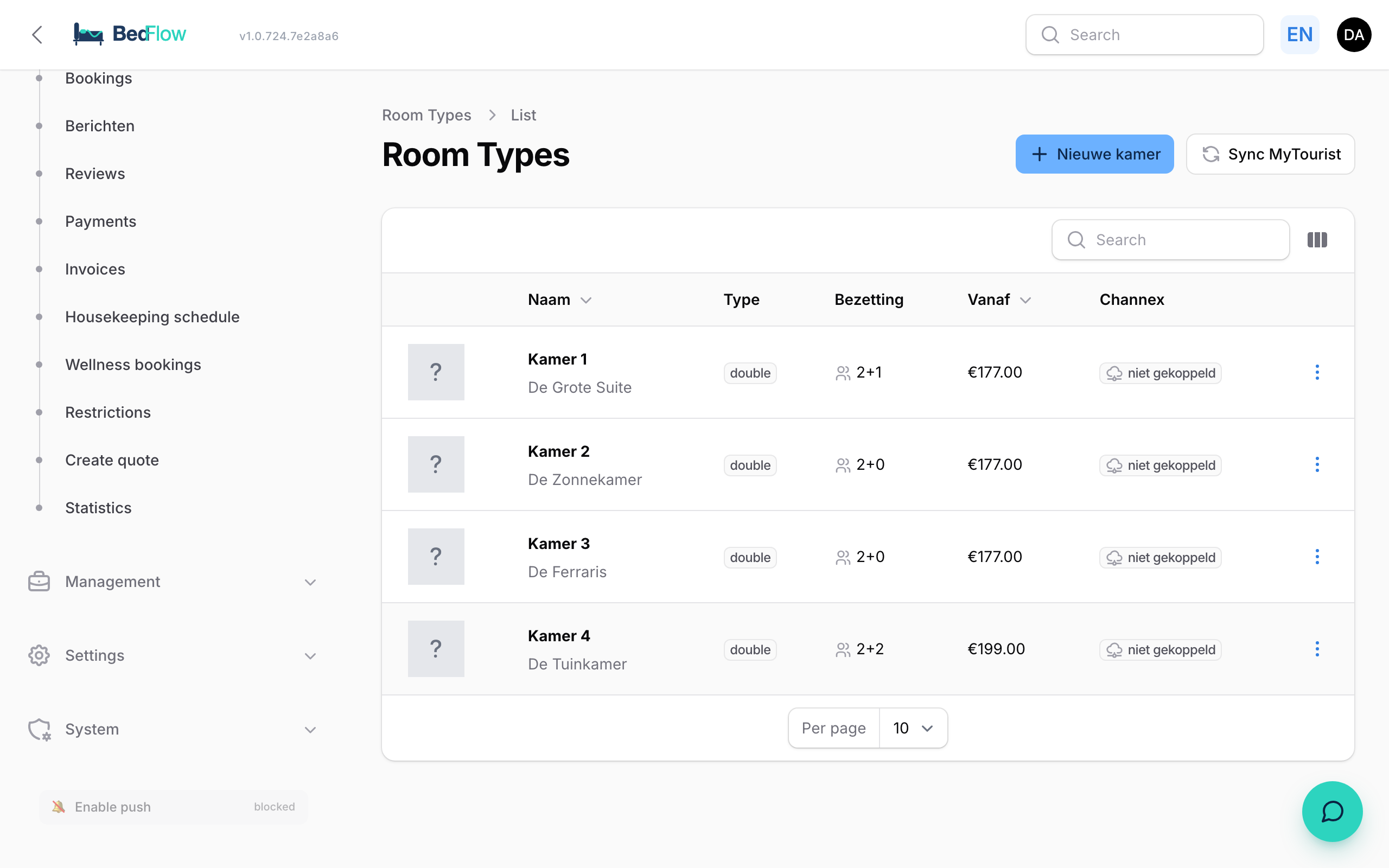
For each room you see:
| Column | What it shows |
|---|---|
| Name | The internal name. If the public name is different, it's shown below. If the room is switched off, you'll read "Inactive — not visible in widget". |
| Occupancy | E.g. "2+1": adults + children. Hover to see the maximum in total. |
| From | The base price per night. |
| Channex | Whether the room is connected to your booking channels. |
Via the three dots on a row you choose View, Edit, Duplicate or Delete.
Adding a new room
- Go to Settings → Room types.
- Click New room at the top right.
- Fill in at least the Basics tab (internal and public name) and the base price on the Prices tab.
- Click Create.
The room can be booked straight away in your grid under Daily → Availability. It appears on your booking page as soon as Active & bookable is on and it has a price.
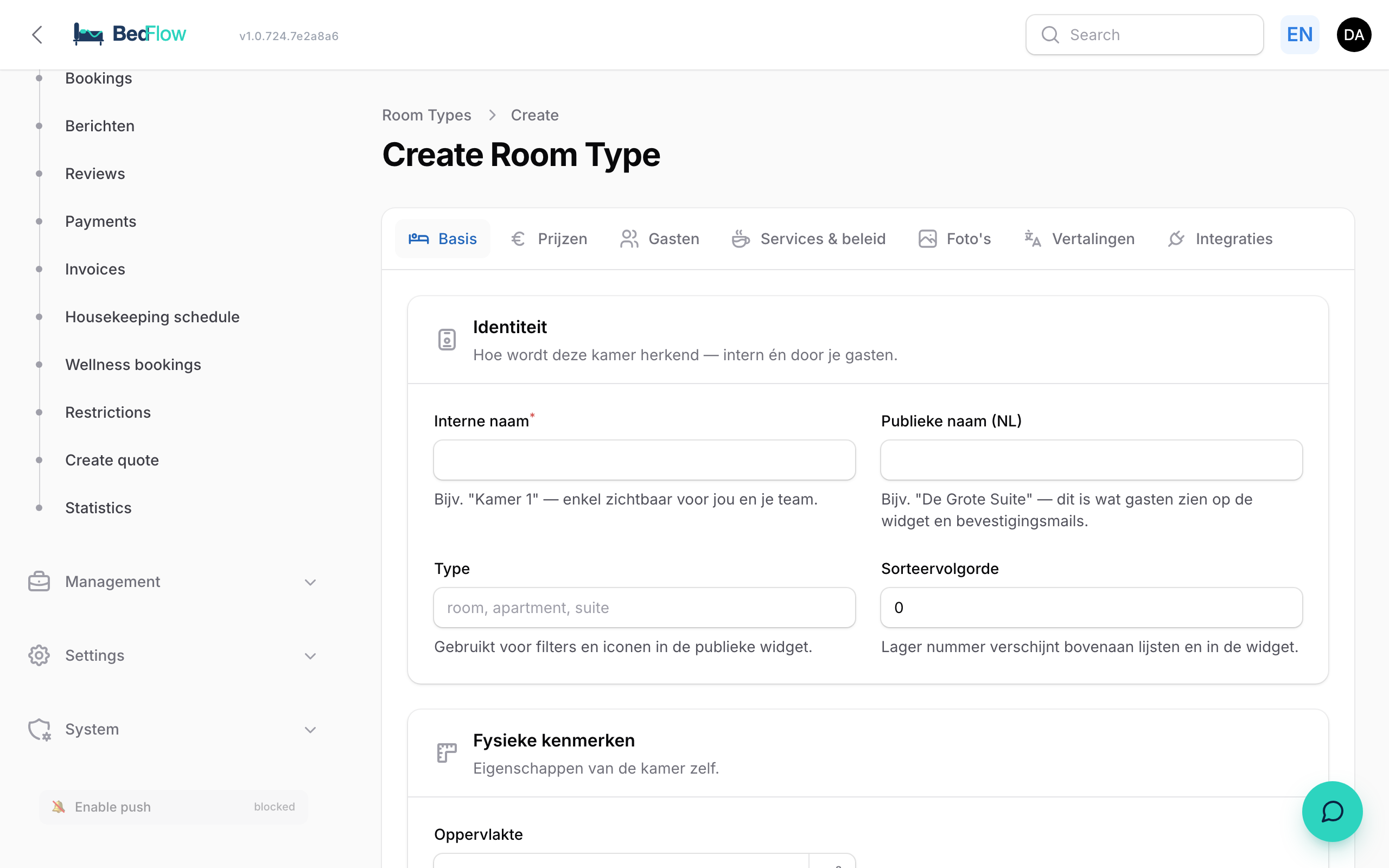
The seven tabs
| Tab | What you set up |
|---|---|
| Basics | Internal name (e.g. "Room 1", only for you and your team), Public name (NL) (what guests see in the widget and the emails), Unit type, Sort order (lower = higher up in lists and in the widget), Active & bookable, surface area, amenities and an internal description. |
| Prices | Base (weekdays) and Weekend (Fri-Sat), this room's Occupancy prices and, collapsed, the accounting details (Ledger account, Description) if you've connected an accounting package. |
| Guests | Max. adults, Max. children, Max. total occupancy and, collapsed, a different children's policy for this room. |
| Services & policy | A different Meal plan, a different Cancellation policy, Rate options on your own booking site, different check-in and check-out times and the Bookable extras in widget. |
| Photos | A Default photo and up to 20 photos in the gallery (jpg, png, webp or heic, max. 15 MB per photo). Drag them into the right order. |
| Translations | The public name and description in Dutch, English, French and German. |
| Integrations | Which rooms together form a Combined unit (only when editing) and the connection status with your channels. |
Unit type
You choose what the unit is. For a property of the holiday home type, the options are Holiday home, Apartment or Studio; for other properties Room, Suite, Studio or Apartment. A self-contained unit (holiday home, apartment, studio) gets no breakfast questions and can have its own address. More about this in Per-unit settings.
Prices
The base price is the price for 2 people per night. If you leave Weekend (Fri-Sat) empty, the weekday price also applies on Friday and Saturday. Seasons, public holidays and a separate price per weekday are set under Management → Rates, see Rate management.
Rate options on your own booking site
On the Services & policy tab, use Add option to add variants of the room price, e.g. a "Hot deal" without breakfast and non-refundable. For each option you fill in:
- Option name
- Price difference: None — the room price, Percentage of the room price or Fixed amount per night, with a Value (negative = discount, positive = surcharge)
- Meals and Cancellation, or Same as the room
- Active
The room price itself is always the first option. If you choose Non-refundable for an option, the guest pays the full amount when booking; the form tells them so right away. Rate options only apply on your own booking site, not on Booking.com and the other channels. How the guest sees them and how they combine with a length-of-stay discount: The booking widget.
Duplicating an existing room
Do you have several identical rooms? Create one in full and then choose Duplicate on that room (three dots on the row). Enter a name for the new room (by default "{name} (copy)") and confirm.
What is copied: photos, translations, amenities, prices and occupancy prices.
What is not copied: the bookable extras, the composition of a combined unit, the rate options, prices you set per day in the calendar, restrictions and the connection with your booking channels. So connect the new room to your channels separately.
Frequently asked questions
Do I have to create every physical room separately? Yes, if it can be booked separately. If you have many rooms of the same type (a hotel), also read Room types with several rooms.
Can I take a room off sale temporarily? Yes. For a few days, block it in the grid under Daily → Availability (see Blocking rooms). For a longer period per channel, use Stop sell under Management → Rates → Restrictions. If you want to remove the room from your booking page entirely, switch off Active & bookable.
I rent out one holiday home. How do I start? Create one room that represents the whole home. All the steps are in Setting up BedFlow for holiday homes.
Does every room count towards my subscription? Yes, every bookable unit counts as a room, including a combined unit. See Subscription & billing.
Related
- Rate management: base prices, seasons and the price chain
- Per-unit settings
- Combined units