Setting up BedFlow for holiday homes
Updated on 2026-10-01
Do you rent out one home in its entirety — not separate rooms, but the whole house per week or weekend? BedFlow is built for that just as much as for B&Bs. This article goes through all the settings that make a holiday home different: one unit, price per number of guests, fixed changeover days, mandatory fees and a longer cancellation window.
Step 1 — set your property type to "Vacation home"
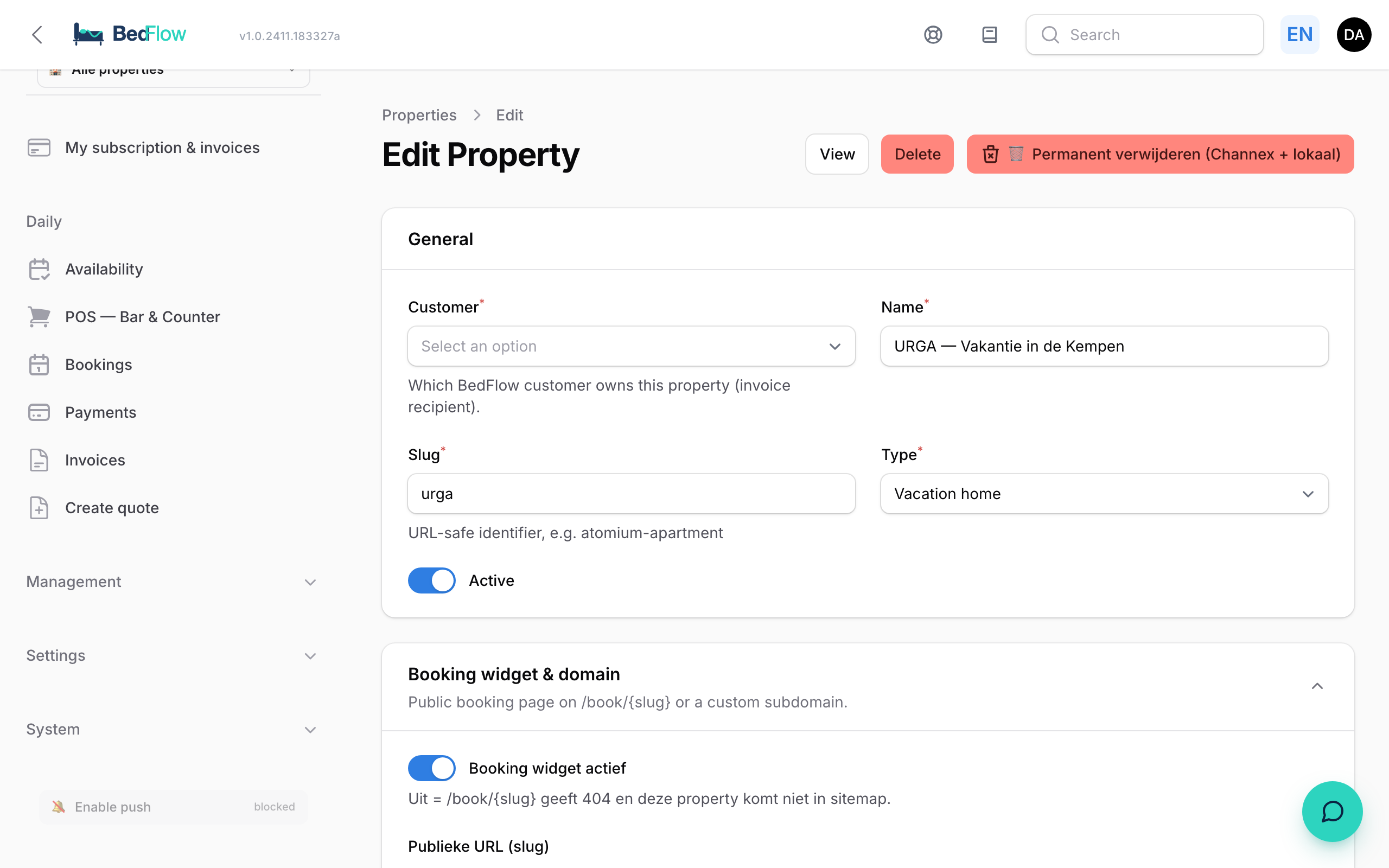
- Go to Settings → My property
- In the General section, under Type, choose Vacation home
- Save
As soon as you choose "Vacation home", the meal plan (section Meals, field What is included by default?) automatically switches to No meals. That way a guest never wrongly sees "breakfast included" in the booking widget or on the OTAs. It's a default, not an obligation: if you do want to offer breakfast, simply change the meal plan back.
Step 2 — one room = the whole home
Create exactly one room that represents the entire home:
- Go to Create a room and give the room the name of your home
- Set the maximum occupancy to the total number of guests the home can take
- Done: one booking immediately occupies the whole home; once it's booked, the calendar is full
From now on you set all prices, restrictions and availability on that one "room".
Several homes at different addresses?
Create a room type for each home and give each its own Unit type and address. Emails, mini-site, widget and Google then automatically show the right house. Read all about it in Per-unit settings.
Step 3 — price per number of guests
A holiday home for 2 people rarely costs the same as for 6. There are two ways to handle that:
1. Occupancy prices (a factor per number of adults) In Settings → My property, section Occupancy prices (modifiers), you set a factor on the base price for each number of adults, e.g. 2 people = 1.00 (the base price), 4 = 1.20, 6 = 1.40. Add rows with + Extra occupancy. Per home you can override this on the room type, Prices tab, Occupancy prices section.
- On your own booking site, for phone bookings and in quotes, only what you fill in yourself applies. If you fill in nothing, the home costs the same for any number of guests.
- On the channels, BedFlow uses the same values. If you fill in nothing, a self-contained home gets one fixed price there too, regardless of the number of guests.
2. A surcharge per extra person Create a product under Management → Products (e.g. "Extra guest") in the Surcharge category and tick Price per person and Price per night. Such a surcharge only counts the people above 2 (adults and children together): 5 guests = 3 × the surcharge per night. Combine it with Mandatory on every booking if the surcharge should always apply.
More about the price calculation in Rate management.
Step 4 — mandatory fees (cleaning, linen)
Almost every holiday home charges a mandatory final cleaning, often also linen or towels. Create a product for this with the Mandatory on every booking toggle:
- It's charged automatically on every booking of the linked unit(s)
- In the booking widget it appears as a fixed line with the label "Required"; the guest can't untick it
- It's included in the total from the very first price display, so no surprises at checkout
All the details are in Mandatory fees.
Step 5 — fixed changeover days (e.g. Saturday to Saturday)
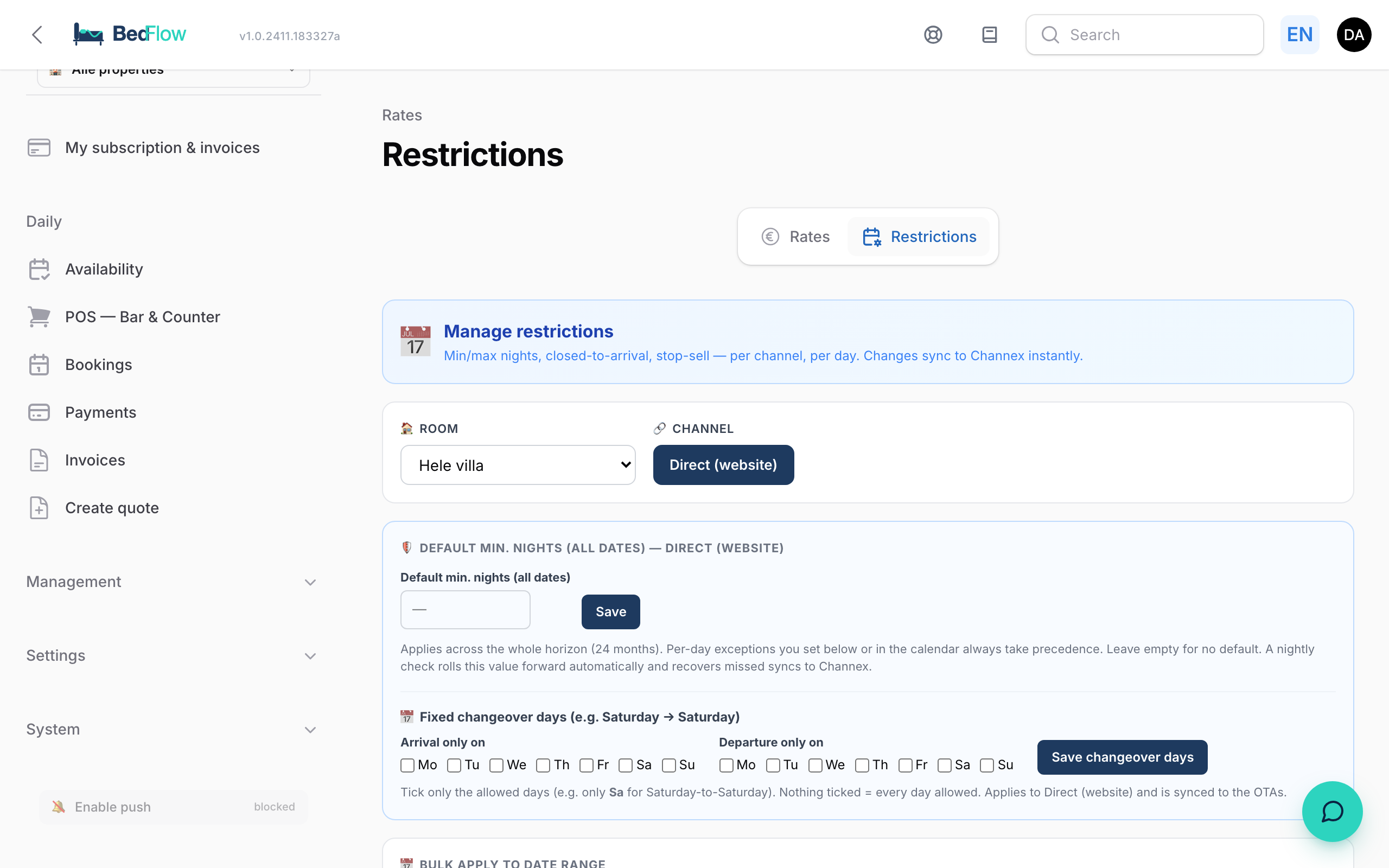
Do you rent by the week with a fixed arrival and departure day? You set that under Management → Rates, tab Restrictions, block Fixed changeover days (e.g. Saturday → Saturday):
- At the top, choose your room and the channel
- Under Arrival only on, tick the permitted arrival day(s) — e.g. only Sat
- Under Departure only on, tick the permitted departure day(s)
- Click Save changeover days
Good to know:
- Nothing ticked = every day allowed: the rule only applies once you tick at least one day
- The rule applies per room × channel: so set it on the Direct tab and on every OTA tab you use
- The rule goes straight to your connected channels; a nightly check keeps it up to date 24 months ahead
- The changeover days work on top of any per-day restrictions (CTA/CTD): the strictest rule always wins
Step 6 — minimum stay
On the same Restrictions tab, fill in Default min. nights (all dates) (e.g. 7 for weekly rentals). That value applies to the whole booking horizon of 24 months; per-day exceptions in the calendar still win. See Restrictions for all the options.
Want a minimum that only applies on your own booking site as well? You set that under Settings → Integrations → Booking Widget → Configure, field Minimum number of nights (see The booking widget).
Step 7 — cancellation policy with a longer window
Holiday homes often use a cancellation period of weeks, not days. In Settings → My property, section Cancellation policy:
- Choose your policy: Flexible (free cancellation), Non-refundable or Late cancellation with a charge.
- Under Free cancellation up to X hours before arrival, enter the number of hours, up to 4320 hours (180 days). Useful values: 168 = 1 week, 720 = 30 days, 1008 = 6 weeks.
- For "Late cancellation with a charge", use Charge for late cancellation to set the percentage that is charged.
Do you have several homes with a different period? Then set it per home, see Per-unit settings.
The booking widget and the confirmation email automatically show the guest the right period.
Frequently asked questions
Can a guest exceptionally arrive on a different day? The changeover day rule always wins over per-day exceptions. If you want to allow a different arrival once, temporarily tick that extra weekday, let the guest book and then set the rule back.
Do the changeover days also apply on Booking.com and Airbnb? Yes. You set them per channel and BedFlow sends them to that channel. Without connected channels, the Direct (website) tab simply works in your own booking widget.
I do want to offer breakfast or a breakfast basket — is that possible? Certainly. Set the meal plan back to "Breakfast included", or keep "No meals" and sell a breakfast basket as a separate product in the widget.
In which language does my guest see the booking form? The widget is available in Dutch, English, French and German, including the country list in the address form. You choose which language the widget uses on your website under Configure on the Booking Widget tile.
Related
- Create a room — the unit that represents your whole home
- Restrictions — min. nights, CTA/CTD and stop sell in detail
- Mandatory fees — charge final cleaning and linen automatically
- Booking widget — how your guest books directly