Cleaning checklist — inventory, quantities and photos per clean
Updated on 2026-10-01
Daily → Housekeeping schedule → Cleaning checklist
If you work with an external cleaning team, you want more back than "room cleaned". Is the soap nearly gone? How many clean towels are left in the cupboard? What did the minibar look like after cleaning? With the cleaning checklist, you decide per property what the cleaning team reports after every clean, without anyone on the team needing a BedFlow login.
How it works
- You put the checklist together once and, if you like, write out points of attention.
- The cleaning team fills in the checklist for each clean, via their usual portal link.
- You immediately receive a summary via Telegram and can see everything in BedFlow.
Putting the checklist together
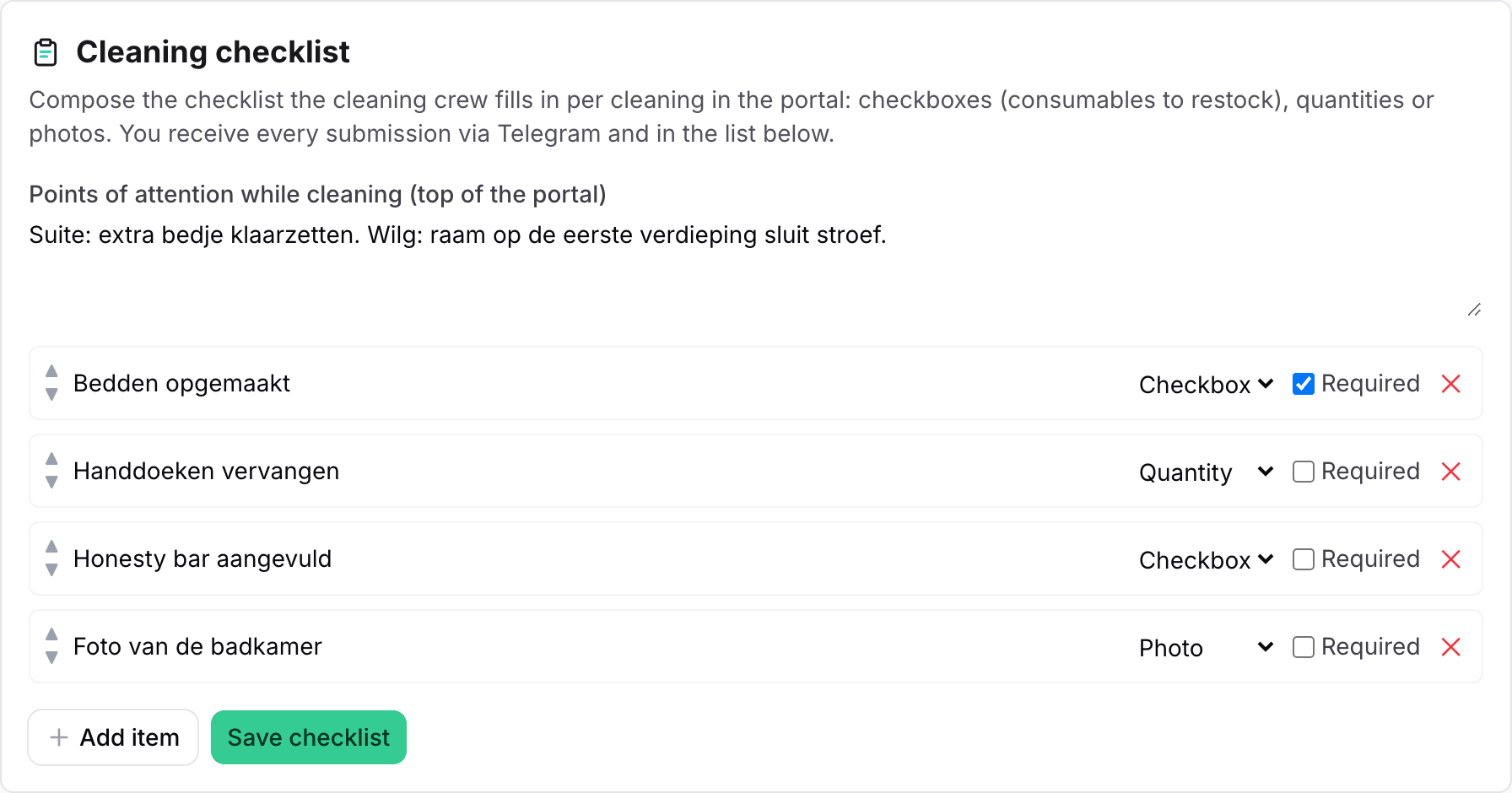
- Go to Daily → Housekeeping schedule. Below the rota is the Cleaning checklist block.
- Click Add item and type a description, e.g. "Restock toilet paper".
- Choose the type:
- Checkbox: to tick when something needs restocking (e.g. "Coffee pods almost gone").
- Quantity: to fill in a number (e.g. "Number of clean towels in the cupboard").
- Photo: to add a photo (e.g. "Photo of the minibar after cleaning").
- Tick Required if the team must fill in this item. This applies to quantities and photos; an unticked checkbox is always a valid answer ("nothing to restock").
- Put the items in the right order with the Move up and Move down arrows.
- Click Save checklist.
Above it is the text field Points of attention while cleaning (top of the portal): instructions that always apply, such as "Always return the key to the lockbox" or "Empty the dishwasher before leaving". This text appears at the top of the portal, so the team sees it first at every clean.
If you have several properties, first choose the right property at the top of the sidebar: each checklist belongs to one property.
What the cleaning team sees
As always, the cleaning team opens their personal link on their phone:
- At the top are your points of attention, in an eye-catching box.
- At the bottom is the Checklist block, with the items per room: tick boxes, fill in quantities and add photos (images only, up to 8 MB per photo). Then Save checklist.
- It can be filled in before and after marking the room as cleaned. Forgot something or filled something in wrong? Simply change it and save again; the latest version counts.
The portal stays privacy-friendly: no guest names and no booking details, only what is needed to clean.
You're notified straight away
As soon as a checklist is saved, BedFlow sends a notification to your property's Telegram channel with a summary:
- which room and who filled in the checklist;
- the consumables to restock (all ticked items);
- the quantities filled in per item;
- the number of photos added.
That way you know what needs to go in the shopping basket before the next guest arrives. If your property doesn't have its own Telegram channel, you only get the notification as a push notification in the BedFlow app. Prefer no Telegram notifications? The Cleaning checklist notification type has its own on/off switch in your Telegram settings.
Everything can be found in BedFlow
On the same Daily → Housekeeping schedule page, under Submitted checklists, you see all submissions for the month shown: which room, who cleaned, the answers per item and the photos (via view photo). The photos are stored in a protected location: you open them via the link in BedFlow, and that link expires after 24 hours.
Good to know
- Filling in the checklist is not the same as marking the room as cleaned: the team can report first and then mark it, or the other way round. If the marking is undone, the answers filled in are kept.
- If you remove an item from the checklist, the answers previously given for that item disappear too.
- The housekeeping module must be switched on. See Activating the housekeeping module.