The guest page (guest portal)
Updated on 2026-10-02
Management → Guest page (content and order of the page)
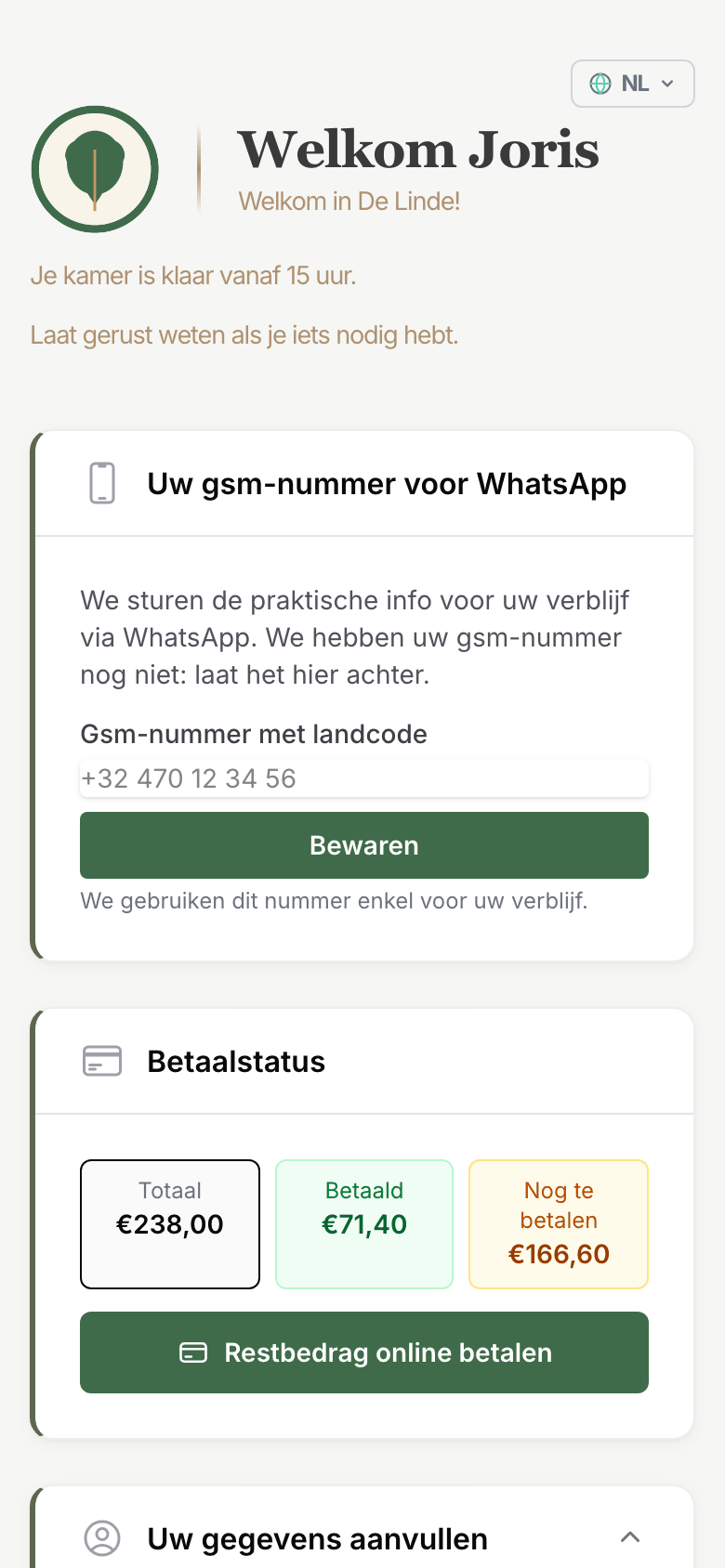
Every guest gets a personal guest page: a single link that guides them before, during and after their stay. On it they complete their details, pass on their arrival time, choose their breakfast, open the door and see their invoice. You don't have to ask for all of that yourself.
What appears on the page and in which order is set under Management → Guest page. See Guest page editor.
How does the guest get the link?
Automatically. The link is included in:
- the confirmation emails (booking, payment received, paid in full);
- the pre-arrival email and the welcome email on the arrival day;
- the WhatsApp messages before arrival and on the arrival day. These add the link at the bottom themselves.
Guests who booked via Booking.com or another channel get their link too. If you send a message yourself from Daily → Messages, you insert the link with the Guest page variable.
How long does the link work?
- Straight away. The guest can open their page as soon as they have the link, even weeks before arrival.
- Until one day after the departure day. After that, the page is closed.
- For 15 more minutes after check-out. When you check the guest out, they can still quickly settle up or fetch something from their room. After that, the page is closed.
- Cancelled = closed. A cancelled booking no longer has a guest page.
The link is personal and cannot be guessed. The door buttons and the PIN code only work after check-in (see below).
In which language?
The page opens in the guest's language: the same language as their emails and WhatsApp messages (based on the language on the booking, their mobile number, postcode and country). At the top, the guest can switch language themselves.
At the top it says "Welcome" with the guest's first name. Below that are three welcome lines. You can write them yourself, see White-label guest page.
What does the guest see?
The page adapts to the stage of the stay.
Before arrival
| Section | What the guest does |
|---|---|
| Your mobile number for WhatsApp | Only if no mobile number is known yet and your property uses WhatsApp. The guest leaves their number, so that the next messages come via WhatsApp. |
| Payment status | Total, paid and outstanding, with a button to pay online. Not shown if the channel collects the payment. |
| Complete your details | Required: first name, last name, mobile number, address, postcode, city, country. Optional: company name, VAT number, emergency contact. The details end up on the customer record. |
| Guest registration | Only if you have switched on guest registration. See Guest registration. |
| Request check-in time | The guest chooses a time and can add a note. See below. |
Always (before and during the stay)
The fixed sections from the editor, in the order you choose:
| Section | Content |
|---|---|
| Information | Your own text (wifi, parking, practical tips) and attachments, plus the weather forecast for your property's town |
| Booking Details | Dates, room, guests and the remarks on the booking |
| Breakfast | Only if your property offers breakfast, see below |
| Nearby Restaurants | Your list of restaurants, with "Closed today" on their closing day |
| Invoice Summary | The running invoice with the outstanding balance, and the PDF once it's available |
| Honesty Bar | Drinks and snacks the guest adds to their own bill |
| Wellness | Only if your property offers wellness |
| Custom sections | Whatever you added yourself in the editor |
During the stay
After check-in, these are added:
- Opening the door. Depending on your lock, the guest sees buttons to open the front door and their room, or a personal PIN code. See Smart locks.
- Honesty bar active. Before check-in, the honesty bar tiles are visible but can't be tapped.
- Guest registration can still be filled in or corrected, if it is switched on.
After the stay
After the departure day, the page shows a thank-you with a request for a review, and the invoice. The honesty bar, wellness and the restaurants disappear. The button to your review page only appears if a review link has been set for your property.
When you check the guest out, the page closes 15 minutes later. Guests who have checked out therefore no longer see this stage.
Requesting a check-in time
On their page, the guest chooses what time they will arrive.
- Within your normal check-in times: BedFlow confirms the time to the guest straight away ("Your arrival at 16:00 is confirmed"). The time appears on the arrival tile in Daily → Availability. You get a notification for your information.
- Outside your normal check-in times: the guest sees "Request submitted" and you get a request to approve or decline the time. On the arrival tile, the time is shown with the status pending.
Your normal check-in times are those of the booked house if you set them per unit, otherwise those of your property (Settings → My property → Check-in / check-out times).
An arrival time the guest passed on when booking, for example via Booking.com, also follows this rule.
Approving or declining
- With Telegram: the request arrives in your property's Telegram channel, with the buttons Approve and Decline. After your click, the guest automatically gets a reply in their language, via the channel's chat or by email. See Telegram notifications per property.
- Without Telegram: the request arrives by email at your property's contact address. You then decide in BedFlow: open the booking, click Edit and, in the Arrival request section, set Request status to Approved or Denied. The guest then doesn't get an automatic reply: let them know yourself, for example via Daily → Messages.
Choosing breakfast
If your property offers breakfast, the guest chooses their time for each morning, even before arrival.
- The times come from Settings → My property → Meals: Breakfast from (Mon-Fri), Breakfast until (Mon-Fri) and the same fields for the weekend. If you leave the weekend empty, the weekday times apply.
- If you didn't fill in anything, 07:00–10:00 applies on weekdays and 08:00–10:30 at weekends and on Belgian public holidays.
- The guest can change their choice until 22:00 the evening before.
- If you set a time outside those hours from Daily — 07:30 for a regular business guest, say, while the weekend starts at 08:30 — the guest sees that time on their page as Agreed, without a dropdown. Your other guests still cannot choose earlier.
- A holiday home or a property without breakfast doesn't show this section.
Honesty bar
The guest taps what they took, and it goes straight onto their invoice. If they tap a tile that already shows a quantity, they can correct a mistake themselves with plus and minus. Every order and correction arrives as a notification in your Telegram channel.
If the guest has already settled part of the tab, those items leave the basket: they appear below it as Already paid, with a check mark on the tile. They can no longer be removed — otherwise the invoice total would drop below the amount already paid and there would be nothing left to pay. Whatever the guest takes afterwards goes into the basket as a new order and is paid separately.
Opening the door (Bold)
In the WhatsApp welcome message, the guest also gets buttons to open the front door and their room. When they tap one, the door opens and they see a page in their language explaining how the Bold lock works: beep, turn the knob, second beep.
Check-in per room
For a booking with several rooms, you check in per room, for example when a group arrives separately.
- The guest page and the door buttons open at the first check-in.
- Door access applies per checked-in room. With Salto, the PIN code only works on the rooms that have already been checked in.
- If, in Daily → Availability, you enter a guest with their own WhatsApp number under Guests per room, that guest gets their own messages with the link for their room. See WhatsApp via TextMeFlow.
Booking.com guests without a mobile number
Booking.com no longer passes on the guest's mobile number. If your property uses WhatsApp, the guest page shows the Your mobile number for WhatsApp box at the top. If the guest leaves their number there, the next messages, such as the welcome message with the link to open the room, come via WhatsApp. More details in WhatsApp via TextMeFlow. BedFlow also asks for the number in the Booking.com chat and takes a number from the guest's reply over automatically.
Privacy
- The link is personal, signed and cannot be guessed.
- The page closes automatically (see above).
- Your cleaning staff work with their own portal without guest details. See Housekeeper portal.
Frequently asked questions
My guest doesn't see a button to open the door. The buttons (or the PIN code) only appear after you have checked the guest in, and disappear 15 minutes after check-out. If the guest hasn't been checked in yet, they see a message that access opens at check-in.
My guest doesn't see a breakfast section. Check under Settings → My property → Meals whether your property offers breakfast. A self-contained house or studio never gets a breakfast section.
Why doesn't the guest see a weather forecast? The weather forecast uses the City field under Settings → My property → Location & contact. If that is empty, the weather forecast is left out.
In which language does the guest see the door-opening page? In the same language as the rest of their guest page and their emails.