The BedFlow app on your phone
Updated on 2026-10-01
Video narrated in Dutch.
What is the app for?
The app isn't a second system, but the same system in your pocket. You log in with your regular BedFlow account and see the same data as on the computer.
At the bottom there are four buttons: Today, Rooms, Calendar and Notifications. Everything else is in the menu at the top left:
| Menu group | Screens |
|---|---|
| Work | Today, Rooms, Calendar, Bookings, Housekeeping |
| Money & figures | Invoices, Payments, Gift vouchers, Statistics |
| Follow-up | Notifications, Guest inbox, Reviews, Support tickets |
| App | Settings |
What you can do with it:
- Today: who is arriving, who is in house (with those who still have to check out today at the top) and who has already left. If a guest was due to arrive yesterday and hasn't checked in yet, they're listed separately under No-show, so you can still check them in. If a guest has sent you a message, you see it straight away on their card; tap it to open the conversation.
- Rooms: the grid, with blocking and releasing.
- Calendar: the month at a glance.
- Bookings: one list of all your bookings, with the filters Upcoming, In house now and All. You can search by name, email address or booking reference.
- Housekeeping: what needs cleaning today.
- Invoices and payments: including recording a payment, and with Bancontact a QR code you show full-screen to the guest so they can pay on the spot.
- Gift vouchers: the list of your vouchers and the PDF for each one, which you can share or forward right away.
- Extras on a booking: a drink or an extra breakfast that was still on a scrap of paper goes onto the proforma from your product list with a single tap. You adjust the quantity on the spot, and a mistake is removed just as easily.
- Guest inbox and reviews: the full conversations, including the photos guests send via WhatsApp and the replies you typed directly in WhatsApp.
- Support tickets: follow up on your tickets and open a new one.
Made for on the go: quickly checking something between two rooms, or confirming an arrival while you're out in the garden. The full work (rates, automated messages, settings) stays on the computer.
What you see in the app follows your permissions: anyone who isn't allowed to see invoices on the computer won't see them in the app either. See Extra users and permissions.
Where do you get it?
| Device | Store | Version |
|---|---|---|
| iPhone and iPad | App Store | 1.4.3 |
| Android | Google Play | 1.4.3 |
Search the App Store or Google Play for BedFlow, or use the links above. The app doesn't ask for a separate account: you sign in with the email address and password you also use to log in on bedflow.eu.
What you need: an iPhone or iPad with iOS 15 or later, or an Android device with Android 6 or later. The version you have is shown at the bottom of the app menu.
Breakfast and extras from the app
Every guest card on Today and every booking detail has a Breakfast button: you see the mornings of the stay (from the day after arrival up to and including the departure day) and choose the time for each morning, with the same drop-down list as on the website (your property's breakfast times, in 15-minute steps) or "no breakfast". Each choice is saved immediately and the guest sees it in the guest portal.
Under Wellness on Today, every session with a proforma has a + Extra button: choose a product (cava, bathrobes, …) and the quantity, and it's added to the wellness proforma with a recalculated total, exactly as on the website. The extras are then listed under the session.
Checking in from the app
Check in on a guest card or in the booking detail is a single tap — except for a guest who isn't expected yet. The first check-in of a booking sends the guest their welcome message with the link to the guest page. So if you tap by mistake on someone who only arrives tomorrow, the app asks first: Not arrived yet shows you who it is, when they are expected, and lets you choose between Don't check in and Check in anyway. The welcome message only goes out after Check in anyway.
Checking in on the arrival day itself stays a single tap, including before your check-in time — no in-between screen there. The same goes for a guest who should have arrived yesterday and sits under No-show: you check them in without any extra question.
Checking out from the app
Check out on a guest card or in the booking detail first opens the same intermediate screen as on the website, never the check-out itself straight away. You see the total, what has already been paid and what is still outstanding, and you choose:
- Register outstanding amount as paid, with the payment method: bank transfer, cash, Bancontact, credit card, Stripe or other. If Bancontact is set up for your property, there's also Bancontact (QR, guest scans): the QR code fills the screen, the guest pays, and as soon as the payment has come in you're back in the intermediate screen with a zero balance to confirm the check-out. For a Booking.com or Expedia booking at a property with its own Stripe key, you can also collect the balance on the card held by the channel; if that fails, the guest isn't checked out and you choose another method.
- Convert proforma to final invoice (not available if the invoice is already final).
- Email invoice to guest, with the address shown so you can see where it's going.
- Settle other open bookings for this guest at the same time: each stay is listed separately, off by default; tick what you're collecting now, with the total shown. Nothing ticked means those bookings simply stay open.
The default choices are the same as on the website: register the balance if something is outstanding, finalise the proforma if it isn't final yet, email if there's an address and an invoice. Untick what you don't want and confirm.
Templates and shortcuts in the inbox
Since 1.4.0 you no longer need to type out a whole reply in the app. Above the text box of a conversation you'll find the same tools as in the web inbox:
- Templates opens a sheet with your templates (the property's own templates, otherwise the default set), already filled in for this guest — first name, arrival date, address, Wi-Fi. The templates that match the guest's latest message are at the top, marked Suggested. One tap fills the text box; you can still adjust it and then send.
- Shortcuts (First name, Guest page, Arrival, Check-in from, Check-out before, Address, Wi-Fi, Wi-Fi password, Room, Phone) paste their value where your cursor is. A shortcut without a value — no booking, no Wi-Fi set up — doesn't appear.
You create and edit templates in the web inbox (gear icon Manage templates); the app uses the same list.
Statistics in the app
Under Statistics you see occupancy and revenue for this month or last month, per property if you tick several, each next to the same month last year.
For the current month, the app counts up to and including today, and the comparison month from last year also only up to and including the same day. So on 5 September you compare 1 to 5 September with 1 to 5 September last year, not with the whole month. The line below the month title tells you exactly which days are counted. A completed month is compared in full.
Notifications on your phone
The app sends you a notification the moment something happens, even when the app is closed:
- New booking — a reservation comes in, via your website or via a booking channel
- Booking changed — the dates or the room of a reservation change
- Cancellation — a reservation is cancelled or expires
- Payment received — a guest pays, online or registered manually
- New guest message — a guest writes to you via Booking.com, Airbnb, WhatsApp or the guest page
- Ticket updated — support replies to your question, or your ticket has been resolved
- Smart locks — a guest opens a door, or an attempt is refused. This one is off by default: a door opening is normal and would otherwise ping all day long. Switch it on if you do want to follow it.
Tap the notification and the app opens straight at the right place: the booking itself, the conversation in the inbox, or the ticket.
The first time you log in, the app asks whether it may send notifications. If you say no, you can still switch them on later in your phone's settings. You choose which notifications you want in the app under Settings → Notifications on this device: one main switch for everything, and a tick box per type. Everything is on by default. That choice applies per device: on your iPhone you can let everything through and on your iPad only the essentials. It's separate from your property's Telegram notifications.
Notifications only arrive in the app on your phone or tablet, not in the browser. If you work with several properties, you receive the notifications for all of them.
The notification list
Everything that came in as a notification can also be found in the app itself, in the menu under Notifications — with a badge for what you haven't seen yet, on the app icon too. Tap a notification to go straight to the booking, the conversation or the ticket; the cross removes it, and at the top you can mark everything as read or clear it all at once. The list belongs to your account and is kept for sixty days, so you see the same list on your iPad as on your iPhone, and a system notification you swiped away isn't lost.
Since 1.3.3 the list is the fourth button at the bottom, next to Today, Rooms and Calendar, with the number of unread notifications on it. If you tap a push notification, the app opens the screen it's about (the booking, the conversation, the ticket); a notification without a specific target opens the list itself.
The number on the app icon follows the list: read or clear notifications and the number updates straight away, even while the app is open, and it's synced again when you reopen the app.
On your Apple Watch
If you have an Apple Watch, BedFlow is on your wrist too. The Watch app does exactly one thing: it shows who still has to check in today and who still has to check out, with one button per guest. The doorbell rings, you turn the crown until you see the right name, tap Check in and confirm — and the guest is in house, exactly as after a tap in the app on your phone.
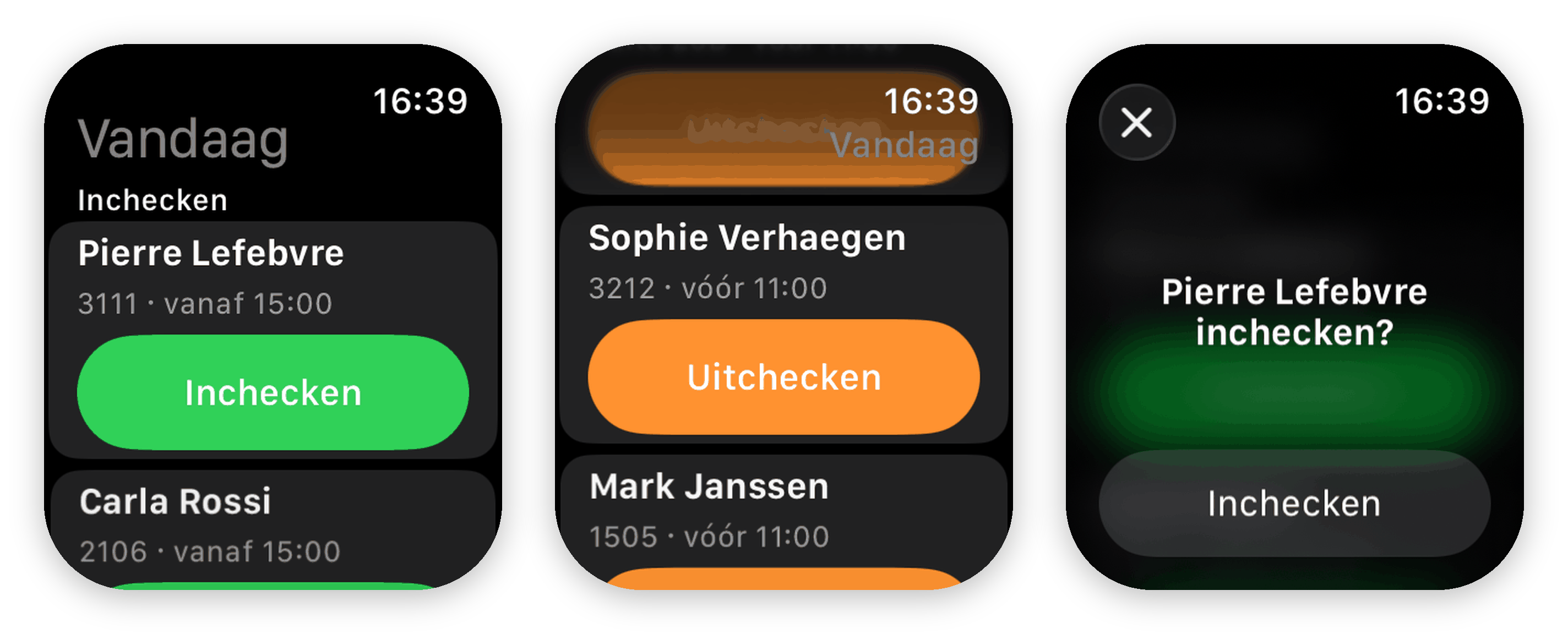
You can't check in a guest who isn't expected yet from your Watch: it tells you the guest only arrives later and points you to the app on your phone, where you can confirm. That way a tap on your wrist never sends a welcome message by mistake.
- The Watch app comes automatically with the BedFlow app on your iPhone. If it isn't on your Watch, switch it on in the Watch app on your iPhone, under Available apps.
- There's no need to sign in separately: open BedFlow once on your iPhone and your sign-in is passed to your Watch automatically. If you sign out on the phone, the Watch forgets you too.
- Below each name you see the room and the check-in time; if you work with several properties, the property is shown as well. The Watch follows the property selection in Settings on your iPhone: tick your properties there and your wrist shows the same guests as your phone.
- If someone else got there first, via the phone or the computer, the guest simply disappears from the list. The list refreshes every time you open the Watch app.
Requires watchOS 10 or later (Apple Watch Series 4 and later). The rest of the app — rooms, calendar, invoices — stays on your phone.
Found something that isn't right?
Let us know with a support ticket. You can do that directly in the app, under Support tickets, or on the computer via the lifebuoy icon at the top. Mention which device you're using and which version of the app: it's shown at the bottom of the app menu. See Creating a ticket.