Extra users and permissions
Updated on 2026-10-01
Settings → Administrators
You don't have to run BedFlow on your own. Add a colleague, your cleaner, your accountant or a co-owner as a user. Everyone logs in with their own email address and password: never share your own login. For each user you choose which parts they can see, and whether they're allowed to change anything.
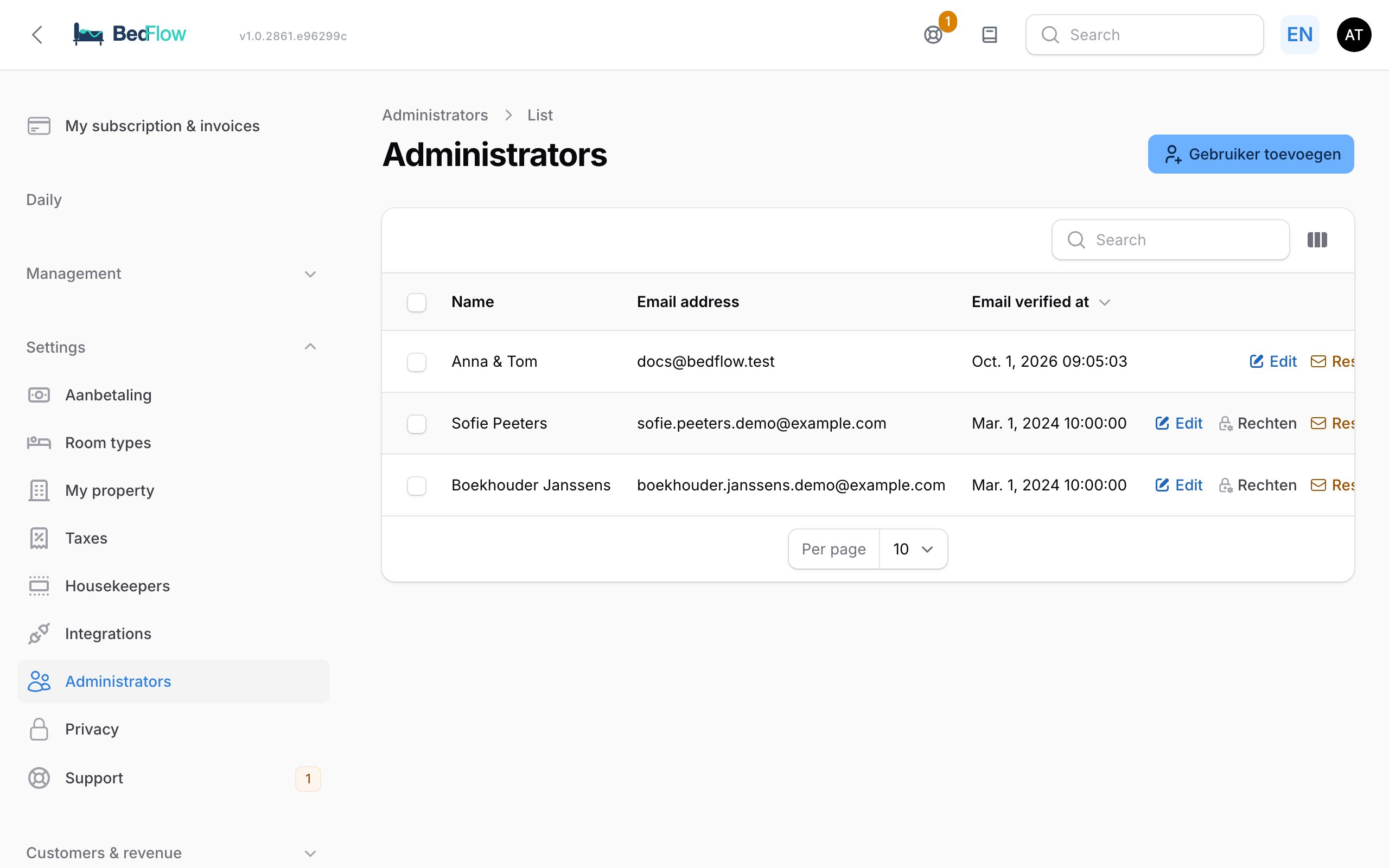
Adding a user
- Go to Settings → Administrators and click Add user.
- Fill in Email, First name and Last name.
- Under Properties this user gets access to, choose one or more properties.
- Tick the boxes under What may this user see and do? (see below). Everything is on by default.
- Switch on View only if needed.
- Confirm. The new user receives an email invitation to set a password.
Didn't the invitation arrive? Use the Resend invite action on the user.
Choose what someone can see
| Module | What does it cover? |
|---|---|
| Bookings & calendar | Calendar, bookings, check-in and check-out, till |
| Invoices & payments | Invoices, payments, deposits, vouchers |
| Cleaning schedule | Cleaning schedule and housekeeping |
| Rates & availability | Base prices, rate rules, restrictions |
| Guest communication | Guest inbox, reviews, emails and templates |
| Settings & integrations | Property settings, integrations, guest page, website |
| Manage administrators | Add extra users and manage their permissions |
Anything that isn't ticked disappears completely from that user's menu. A cleaner with only Cleaning schedule therefore sees no invoices and no revenue figures.
View only
Switch on View only and the user sees everything within their modules, but can't change or add anything: no creating or moving bookings, no adjusting rates, no deleting. Handy for an accountant who wants to consult the invoices, or a co-owner who likes to keep an eye on things.
Changing permissions later
- Go to Settings → Administrators.
- Click Permissions next to the user.
- The Permissions of … window shows the Modules and the View only switch per property. Change what you want.
- Click Save permissions.
The change applies from the next page the user opens.
Who can manage permissions?
Only someone who has full permissions on a property and has the Manage administrators module can add users and change permissions. Someone who is restricted can therefore not give themselves or others extra permissions. You can't change your own permissions: another owner does that.
In the mobile app too
The permissions also apply in the BedFlow app: anyone without access to invoices in BedFlow won't see them on their phone either. See The BedFlow app.
Frequently asked questions
Does an extra user cost anything? No. Your subscription depends on your number of rooms, not on the number of users.
How do I remove someone? Open the user in Settings → Administrators and delete them. If you want someone to see less for a while, adjust their Permissions instead.