Building your website and setting up your own web address
Updated on 2026-10-01
Management → Website → My website
BedFlow includes a simple website builder for your property. Your own domain name (e.g. yourbusiness.com) then shows a neat website with your photos, your story, your rooms or holiday homes, your facilities, your contact details and a Book now button.
No WordPress, no separate hosting, no extra subscription. Whatever you save goes online straight away.
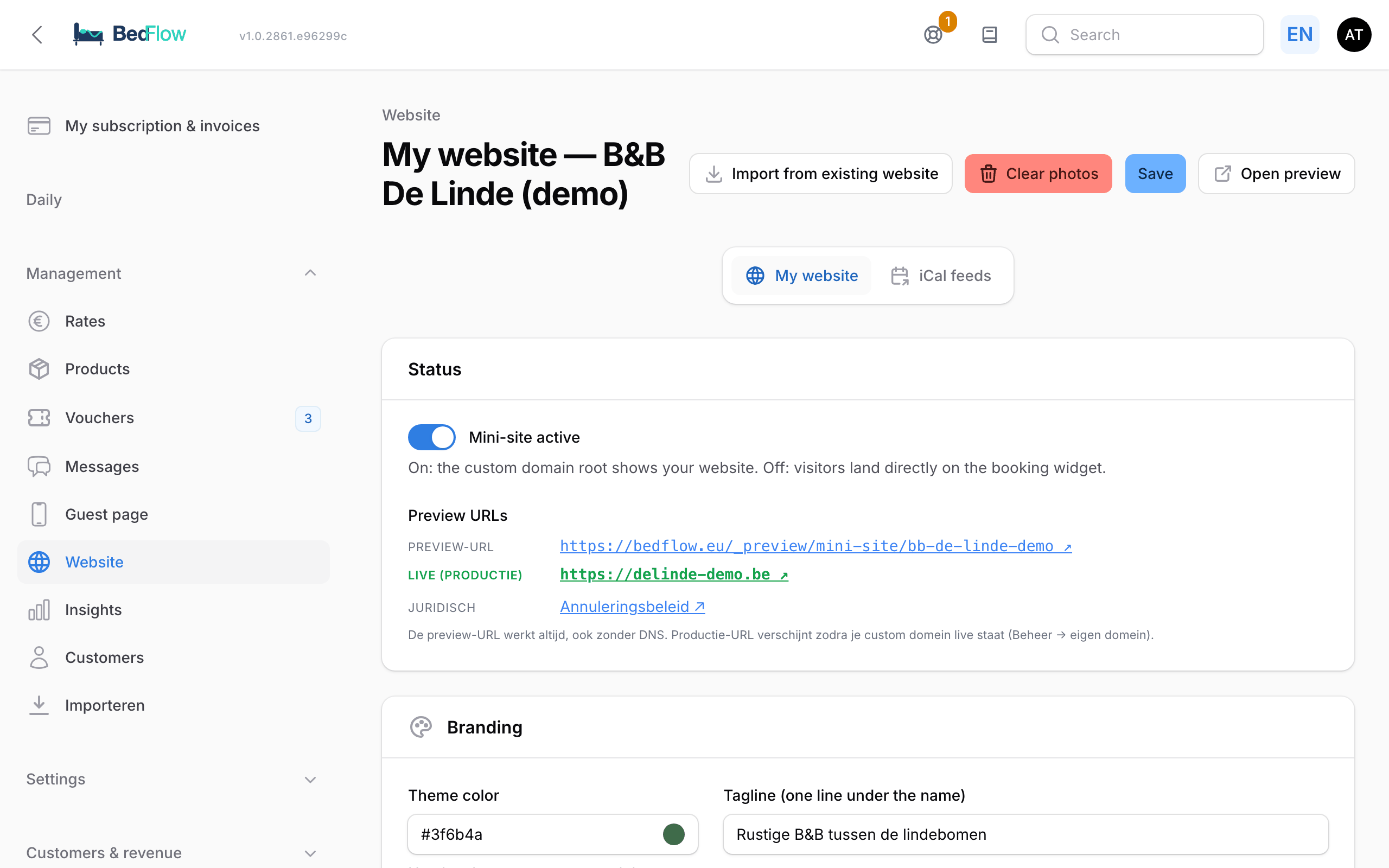
Where do you find it?
Under Management → Website there are two tabs: My website and iCal feeds. Each property has its own website. If you manage several properties, first select the right property at the top of the sidebar.
At the top of the page are the buttons Import from existing website, Clear photos, Save and Open preview.
Setting up your website in 4 steps
1. Import from an existing website (optional)
Did you have a website made with the MyTourist website builder (e.g. an address on w.mytourist.cloud, or your own domain pointing to it)? Click Import from existing website and paste the full address. BedFlow fetches whatever it finds:
- the theme colour;
- the photos for the slideshow and the gallery;
- your logo and favicon;
- your facilities;
- your contact details (town, country, phone, email);
- the search engine description.
Photos are added alongside what is already there. If you want to start over first, click Clear photos: this removes the slideshow and gallery photos, your logo and your favicon, but not your texts.
The import works best for MyTourist sites. With other website builders (Wix, Squarespace …), BedFlow often finds little; in that case, fill in the fields yourself.
2. Branding, photos and texts
| Section | What do you fill in? |
|---|---|
| Branding | Theme color (for buttons and accents), Tagline (one line under the name), Upload logo, Upload favicon |
| Photos | Upload hero photos (slideshow): the first photo is the large background at the top; 16:9 or 4:3 works best. Upload gallery photos: the atmosphere shots at the bottom |
| Text | Intro text: the first paragraph under the large photo. About us: the story behind your business |
| Facilities | A list with an Icon and a Label per amenity, e.g. parking or Wi-Fi |
| SEO | Search engine description: appears in Google and when shared on social media; a maximum of 160 characters works best |
Drag your photos into the upload box and click Save. Below each upload box you see the photos that are already there; use the cross to remove one.
If you rent out several rooms or holiday homes, each home on your website gets its own photo slider (with the photos of the room type), and the gallery shows the photos per home. If a home has its own address, it is shown with a link to the map. You set photos and the address per home under Settings → Room types.
3. Facilities, Practical information and Guestbook
Three extra sections, each with its own checkbox:
| Section | Checkbox | What do you put in it? |
|---|---|---|
| Facilities | Show facilities on my site | Explanation of your amenities: hours, exceptions, what is included |
| Practical information | Show practical information on my site | Getting there, parking, arrival and departure, house rules |
| Guestbook | Show guestbook on my site | Scans or photos of pages from your guestbook, via Add pages |
A section appears on your website, including in the menu at the top, only if it is ticked and filled in. The guestbook pages appear in the order in which you upload them; visitors can enlarge them.
4. Going live
At the top, in the Status section, is the Mini-site active toggle.
- On: your full website is shown on your own web address.
- Off: visitors to your own web address land straight on your booking page.
Your website only appears on your own domain name once that address has been set up. See below.
Viewing your website before it goes live
Under Preview URLs you will find the addresses where you can view your website:
| Address | When does it work? |
|---|---|
https://bedflow.eu/_preview/mini-site/{your-slug} |
Always, even without your own domain |
https://{your-own-domain} |
As soon as your own web address is live |
If you have filled in legal pages, their preview links are shown there too. Handy for showing your website before you switch your domain over.
Setting up your own web address
Settings → My property → section Website & booking page
Your website (or, if the website is switched off, your booking page) can be on your own domain name. BedFlow arranges the security certificate itself.
- Go to Settings → My property, click Edit for your property and scroll to Website & booking page.
- Click Set up web address. In the Your own web address window, type your domain, with or without www and with or without
https://: BedFlow works out the correct form itself. Click Activate. - BedFlow shows which DNS records you need to enter at your domain name provider (One.com, Combell, Cloudflare, Hostinger …):
| For | Type | Name | Value |
|---|---|---|---|
yourbusiness.com |
A | @ |
76.13.46.169 |
www.yourbusiness.com |
CNAME | www |
bedflow.eu |
If you enter a plain domain (yourbusiness.com), BedFlow also links www.yourbusiness.com, and vice versa. The address without www needs an A record: DNS rules do not allow a CNAME there. If you choose a subdomain, e.g. book.yourbusiness.com, a single CNAME record is enough.
- A change at your provider is usually active within 15 minutes. Then click Refresh status, or Reactivate web address.
- Follow the checklist under Status:
- DNS is correct
- Site created at BedFlow
- Security certificate installed
- Domain responds
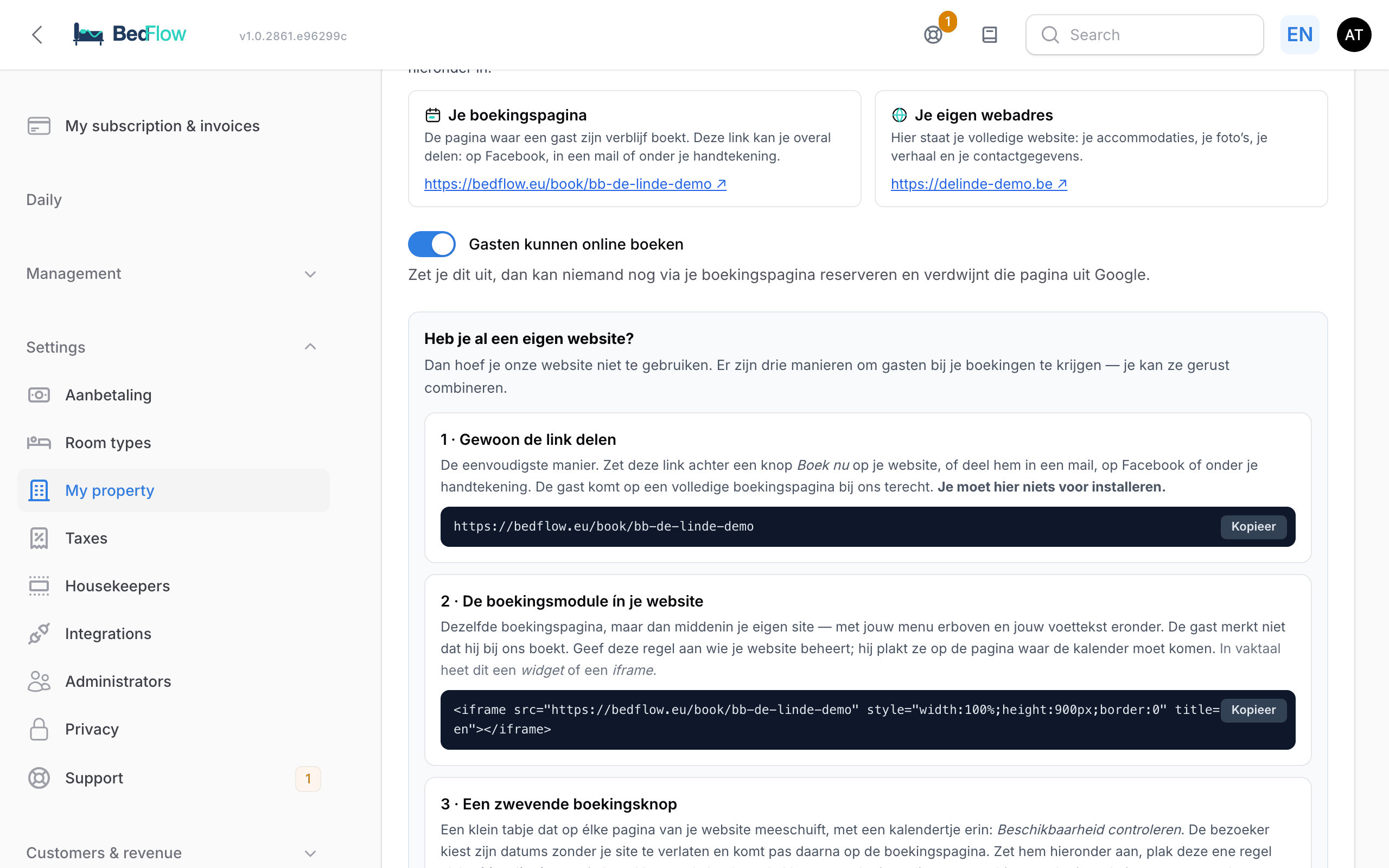
Once all four steps are green, you see Live with your address. Each DNS record shows correct or not yet confirmed. Below the live address you can see whether the variant with or without www also redirects.
To disconnect your own domain again, click Deactivate domain.
Legal pages
In the Legal pages section you fill in the Disclaimer, Privacy statement, Cookie policy and Cancellation policy. Only what you fill in appears on your website, with a link in the footer. On your own domain they are located at /disclaimer, /privacy-policy, /cookie-policy and /annuleringsbeleid.
The cancellation policy is especially useful if you have no other website: if the text is filled in and your own domain is live, your booking module, your quotes and your guest page link to it automatically. If you enter an address yourself under Settings → My property → Legal links (per property), that takes precedence.
Gift vouchers on your website
If you sell gift vouchers, your website automatically gets a section and a Gift voucher menu link. See Gift vouchers.
Book now
Every Book now button on your website opens the booking module in a window, without the visitor leaving your website. Your booking page also remains available as usual at bedflow.eu/book/{your-slug}. See The booking widget.
Found in Google
Your website is easy for search engines to read straight away:
- an attractive preview when shared on social media, with your large photo;
- a version for each language you filled in;
- structured data about your property (address, contact, photo) for Google;
- the description you enter yourself under SEO.
AI assistants can find your property too. See AI discoverability.
Languages
Your website is available in Dutch, English, French and German. Visitors switch language at the top. If you only fill in a text in Dutch, the website falls back to that. So you can start with one language.
Frequently asked questions
Can I change the order of the photos? When uploading, you can arrange the new photos. To move photos that are already there, delete them and upload them again in the order you want.
Will my booking page disappear? No. Your booking page stays, and all the buttons on your website link to it.
How often can I make changes? As often as you like. Click Save and it is online.
My domain has been with a web designer for years. Do I have to cancel that?
No, you keep managing your domain name yourself at your provider. You only change the two DNS records. If there is still a website on that address that you want to keep, choose a subdomain for BedFlow, e.g. book.yourbusiness.com.