Manual booking (phone or walk-in)
Updated on 2026-10-01
For phone guests and walk-ins you fill in one short form. Only the bare essentials; the guest completes the rest themselves via their guest page.
When do you use this?
- A guest calls to book directly.
- Someone is at the door ("do you have a room for tonight?").
- An enquiry came in via email, Instagram or WhatsApp.
Guests who book via your website use the booking widget.
Creating a booking
There are two ways to open the form:
- Daily → Bookings → New booking button at the top right;
- or in the room overview: right-click a free day for a room and choose Create new booking…. The room and date are then already filled in.
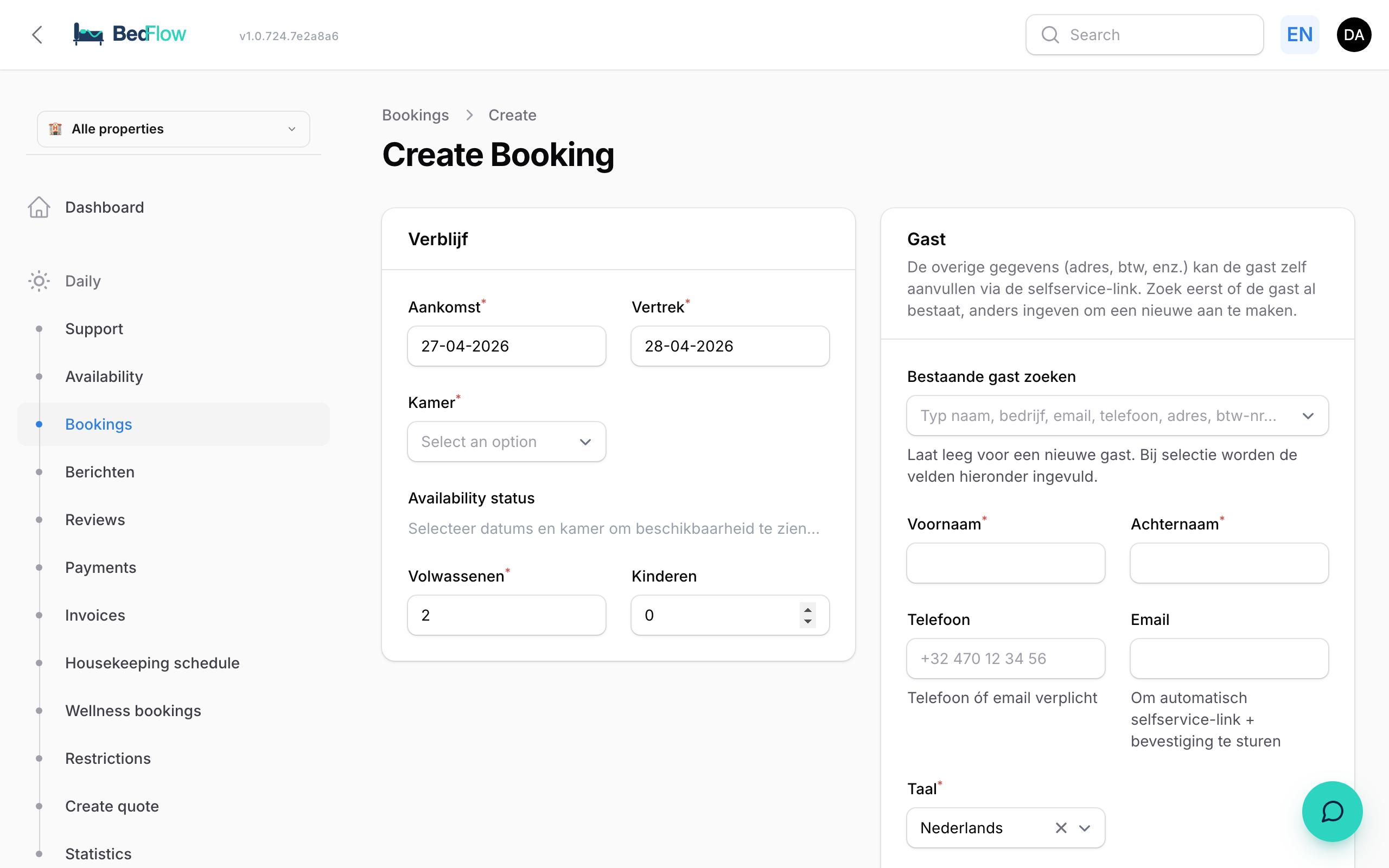
Stay
| Field | Explanation |
|---|---|
| Arrival and Departure | Today and tomorrow by default. |
| Room | For each room you see the price per night and the total. If a room is occupied or blocked, it says "occupied/blocked"; you can still choose it to overbook deliberately. |
| Adults and Children | 2 adults by default. |
Below the room, BedFlow immediately shows whether it's available and what the stay costs, e.g. "Available — €240 for 2 nights (excl. extras / tourist tax)". Restrictions such as a minimum stay don't apply to a booking you enter yourself.
Guest
| Field | Explanation |
|---|---|
| Search existing guest | Type part of the name, company, email, mobile number, address, postcode, city or VAT number. If you choose an existing customer, the fields below are filled in. Leave empty = a new customer. |
| First name and Last name | Required. |
| Phone and Email | At least one of the two. With an email address, the guest immediately receives their confirmation and the link to their guest page. |
| Language | Nederlands, English, Français or Deutsch: the language of the confirmation email. |
| Notes | E.g. "late arrival 9 pm" or "vegetarian". These are added to the booking as a guest remark. |
If you enter an email address that already belongs to a customer of your property, BedFlow links the booking to that customer.
Payment required and payment deadline
A phone guest pays on site by default: the Payment required switch is off and the confirmation email contains no payment link.
If you switch it on, the guest receives a payment link in their confirmation email and the regular payment follow-up with payment reminders runs. Below it, Payment deadline appears:
- Property default: the deadline you set under Settings → Deposit (see Deposit).
- Within 1 hour, Within 6 hours, Within 12 hours, Within 24 hours or Within 48 hours: for a guest who is arriving soon.
The guest reads the deadline in their confirmation email. The deadline never falls later than the start of check-in on the arrival day.
Click Create.
What happens automatically afterwards?
- The booking is confirmed immediately.
- The customer is created or reused.
- BedFlow calculates the price according to your rates, adds the tourist tax and creates the proforma and the deposit.
- If the guest has an email address, the confirmation email goes out according to your automated messages.
- If the room is connected to your channels, the availability goes straight to Booking.com and the other channels.
- You land on the booking's detail page.
In the room overview and in the statistics, such a booking is shown as a direct phone booking.
After creating it
- Internal note: add a note only for you and your team via Edit. See Changing, moving and printing bookings.
- Send email: if you didn't have an email address when creating the booking, add it and still send the confirmation via Send email.
- Changing dates, moving or cancelling: see Changing, moving and printing bookings.
Who is invoiced?
On the booking (Edit) you'll find the Invoice to section: the customer with company name, VAT number / tax number, name, address, email and phone, exactly as it appears on the invoice. If something isn't right, change it there and click Save changes.
- What you change here is saved on the customer. The proforma and the invoice always read the customer, and the booking's email address and mobile number follow along (that's where the invoice and the guest emails are sent).
- Choose a different customer with the Customer (debtor) drop-down list at the top of the section.
- The booking's guest name stays separate: the traveller can be someone other than the person who receives the invoice.
You can also quickly correct a name or email address by clicking the guest name on the tile in the room overview.
Guests per room
Is someone booking several rooms for others (a family, three couples, a company for its staff)? On that booking's tile in the room overview there's a {N} rooms chip. Click it and, in the Guests per room window, fill in the Name, WhatsApp number and Language of the person actually sleeping in each room. Click Save.
- Those guests then appear below the booker on the tile, each with their own WhatsApp button.
- The stay's automated WhatsApp messages (welcome on the arrival day, door codes, message before arrival) go to the booker and to every room guest, each with their own first name.
- If you leave the language on automatic, it follows the country code of the number (+90 becomes English, +49 German), otherwise the language of the booking.
- If you leave a room empty, it stays with the booker. The booker only receives the messages for the rooms without their own guest, and nothing more once every room has its own guest.
- Even with one room you can set a guest other than the booker: click the guest chip.
The booker always remains the customer on the invoice.