My property — your property settings
Updated on 2026-10-01
Settings → My property
This is where you set up everything that belongs to the property itself: the name and address, your booking page and your own web address, your logo and colours, the check-in times, the Wi-Fi, breakfast, your cancellation policy and the details that appear on your invoices. BedFlow uses what you fill in here everywhere: in the booking widget, in the emails to your guests, on the guest page, on your invoices and on the booking channels.
If you manage more than one property, the menu item is called My properties.
Opening the settings
- In the sidebar, click Settings → My property.
- Click Edit next to your property.
- Change what you want and click Save at the bottom.
The page has no tabs but sections one below the other. Scroll to the section you need.
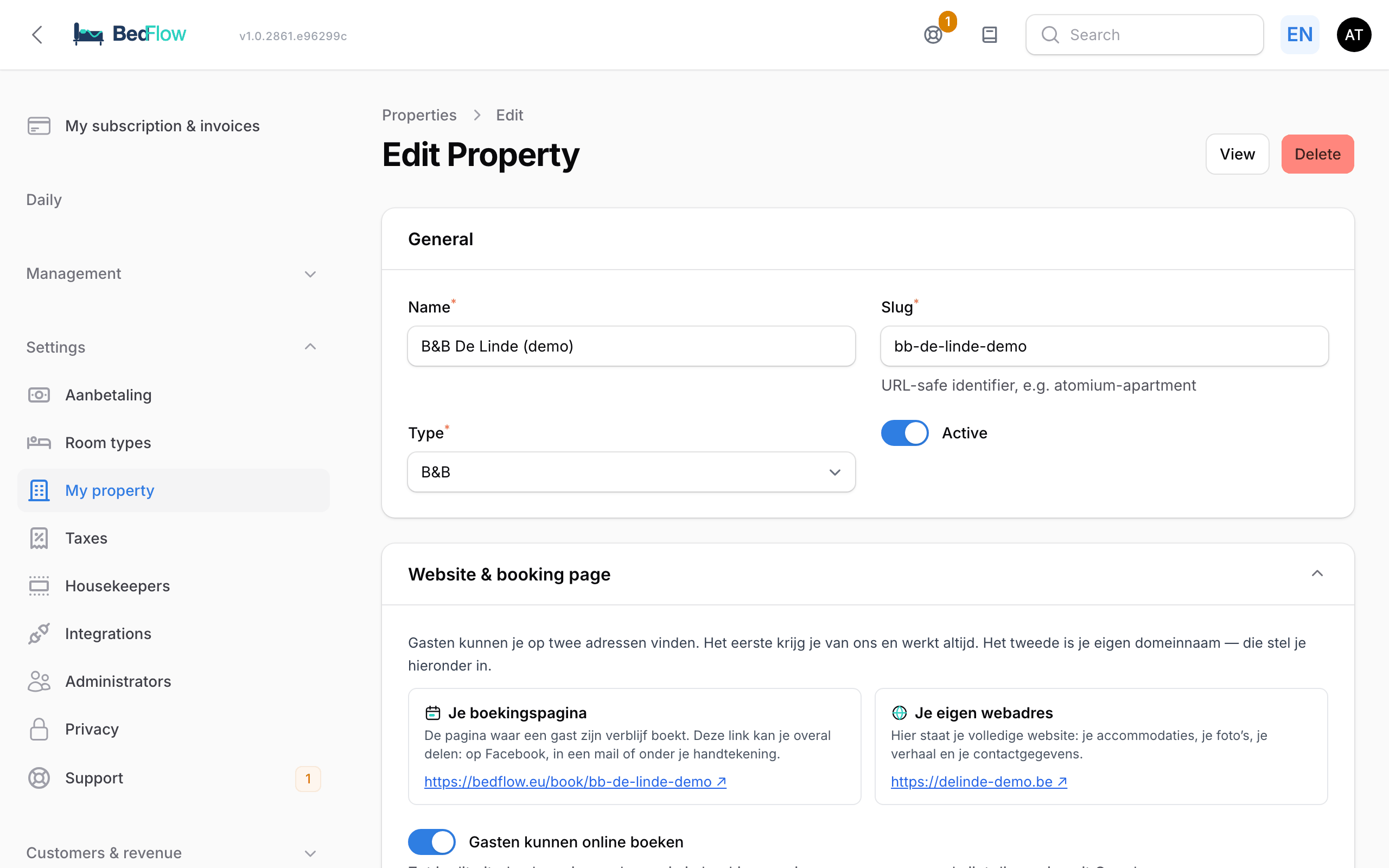
The sections
| Section | What do you set there? |
|---|---|
| General | Name, slug (the part of your booking link after /book/), type (B&B, hotel or holiday home) and whether the property is active |
| Website & booking page | Your booking page, whether guests can book online, your own web address and the floating booking button for your own website |
| Branding | Primary colour, accent colour, logo, favicon and an optional header and footer for your emails |
| Location & contact | Address, postcode, city, country, time zone, language, website, contact email and contact phone |
| Check-in / check-out times | Check-in from, Check-in until and Check-out before |
| WiFi | Network name, password, security and a printable QR card |
| Meals | What is included by default, and your breakfast times for weekdays and weekends |
| Cancellation policy | Which cancellation policy guests see, until when free cancellation is possible and the charge for late cancellation |
| Occupancy prices (modifiers) | A price factor per number of adults, e.g. cheaper for one person |
| Facilities (Booking.com filters) | The amenities of your property, ticked per category |
| Children & infants | Whether children and babies are welcome, the age limits and a rate per age group |
| Invoicing | The details on your invoices: legal entity, address, contact, bank and layout |
| Booking widget behaviour (per-property override) | Deviations from the default for your booking widget, such as the minimum and maximum number of nights |
| Guest page footer (per-property) | Your Facebook and Instagram link at the bottom of the guest page |
| Legal links (per-property) | The links to your terms and conditions, your cancellation policy and your house rules |
| Guest page welcome (per-property) | The welcome lines at the top of the guest page |
| Email (per-property override) | A BCC address that receives a copy of every email to your guests |
| Content & policies (OTA / Google) | Description, house rules and policies that are sent to your booking channels and Google |
| Extra settings | Only fill these in if support asks you to |
At the bottom of the page there is also the Webhooks (Conversion API) block. You only need it if you want to forward bookings to your own advertising or CRM system.
Below you'll read what matters in each section.
General
- Name: the name guests see, in emails, on invoices and on your booking page.
- Slug: the last part of your booking link, e.g.
bedflow.eu/book/de-linde. Don't change it once you've shared the link: old links will stop working. - Type: B&B, hotel or holiday home. If you choose Vacation home, BedFlow immediately sets meals to "no meals". The type also determines which Google integration you get (Google Hotel Ads or Google Vacation Rentals).
Website & booking page
At the top you'll see two small cards:
- Your booking page: the BedFlow link where a guest books their stay. It always works and you can share it anywhere.
- Your own web address: your own domain name, once you've set it up.
Below that:
- Guests can book online: if you switch this off, nobody can reserve through your booking page any more and the page disappears from Google.
- Already have your own website? BedFlow shows three ways to let guests book from your own site: a link behind a button, the booking widget embedded in your page, or a floating tab with a calendar. You can copy the codes. More in The booking widget.
- Floating booking button on my own website: switch the button on and under Where is the button? choose bottom right, bottom left, top right or top left. The button only appears once the script line is on your website. Its colour follows your accent colour from Branding.
- Your own web address: with the Set up web address button you connect your own domain name, with and without www. BedFlow shows the DNS records you need to enter at your domain registrar and a checklist until your site is live. The step-by-step guide is in Setting up your own web address.
Branding
BedFlow uses your colours and logo in the booking widget, in the emails to your guests, on your website and on your invoices. If you leave something empty, BedFlow uses a neutral default.
| Field | Explanation |
|---|---|
| Primary colour | For buttons, headings and highlights |
| Accent colour | For smaller highlights, and the colour of the floating booking button |
| Logo | PNG, JPG, WebP or SVG, up to 2 MB |
| Favicon | The small icon in the browser tab, square, up to 512 KB |
| Email header HTML (optional) | A block at the top of every email, e.g. a banner |
| Email footer HTML (optional) | A block at the bottom of every email, e.g. your social media or opening hours |
A Preview shows right away what it looks like.
Location & contact
Be sure to fill in Contact email and Contact phone: they appear in your emails and on the guest page, so guests can reach you. If you haven't set up a Telegram channel, you'll receive notifications about your property (such as a requested arrival time) by email at your property's contact address.
Check-in / check-out times
Check-in from, Check-in until and Check-out before appear in the confirmation email, on the guest page and on your website, and are also sent to your booking channels. If a guest requests an arrival time within these hours via the guest page, BedFlow confirms it automatically. A time outside them is first put to you.
If you have units with their own times (e.g. a holiday home next to your B&B), set them per room type. See Per-unit settings.
WiFi
Enter your network name (Network name (SSID)), Password and Security once. BedFlow uses them in the check-in email, on the guest page and in the messages to your guests. With Download QR card (PDF) you print a small card that guests scan to connect straight away. See also WiFi.
Meals
- What is included by default?: e.g. breakfast included or no meals. This applies to all rates; you can deviate from it per room type.
- Breakfast from / until (Mon-Fri) and Breakfast from / until (Sat-Sun): your breakfast times. On the guest page, the guest can only choose from these times.
Cancellation policy
| Field | Explanation |
|---|---|
| Which policy do Booking.com / your own widget show? | Your default policy, e.g. flexible or non-refundable |
| Free cancellation up to X hours before arrival | 48 hours by default |
| Charge for late cancellation | Only for the policy with a charge for late cancellation; 100% by default |
You can set a separate cancellation period per room type.
Occupancy prices (modifiers)
A price factor per number of adults. 2 people = 1.00 (the base price). If you set 1 person to 0.80, for example, someone travelling alone pays 20% less. More in Rate management.
Children & infants
Choose whether Children allowed and Babies allowed apply, up to what age someone counts as a baby (Baby up to age, 2 by default) or a child (Child up to age, 12 by default), and which rate each age group pays. This policy is visible on your booking widget and on your channels.
Invoicing
These details appear as the seller on every invoice and in the electronic invoice (Peppol). Fill them in before you create your first invoice.
- Legal entity: Company name, VAT number and Company registration number. The company name may differ from the name of your property: your property name then appears above it.
- Address: the registered office.
- Contact: phone, email address and website on the invoice. These may differ from your usual contact details, e.g. a separate address for your accounting.
- Bank / Payment: IBAN, BIC / SWIFT and Bank name: the account your guests pay into. The IBAN is also used in the payment QR code on the invoice.
- Branding & layout: whether the payment QR code appears on the invoice (Show EPC payment QR) and your own footer for invoices and proformas.
See also Invoicing & proformas.
Booking widget behaviour (per-property override)
Leave a field empty and the BedFlow default applies. Only fill in what needs to be different for your property:
- Minimum number of nights and Maximum number of nights for online bookings.
- Group room types in the widget: for properties with several rooms of the same type. The guest then chooses how many rooms they want and BedFlow assigns them. See Room types with several rooms.
How much a guest pays when booking, and within what period, is set under Settings → Deposit. See Deposit.
Guest page footer, legal links and welcome
- Guest page footer (per-property): your Facebook URL and Instagram URL. Empty = no icon.
- Legal links (per-property): Terms and conditions URL, Cancellation policy URL and House rules URL. Fill them in once: the same links appear in the booking widget, on your quotes and at the bottom of the guest page. Without a link to your terms, the consent checkbox in the booking widget has little value. If you have a BedFlow website with a cancellation policy, BedFlow automatically links to it when you leave this empty.
- Guest page welcome (per-property): three welcome lines at the top of the guest page. Empty = a neutral default text in the guest's language.
More in White-label guest page.
Email (per-property override)
BCC address for all outgoing guest email: every email to a guest (confirmation, invoice, wellness …) is sent as a blind copy to this address. Separate multiple addresses with a comma. Empty = no copy.
Content & policies (OTA / Google)
These details go to your booking channels and Google: a short description (up to 500 characters), your region, the maximum number of guests, the check-in and check-out time, internet, parking, pets, smoking and your cancellation rule for the channels. Google rejects a property without these details. See Channex and Google.
What is not in My property?
| What | Where |
|---|---|
| Deposit and payment deadline | Settings → Deposit |
| VAT and tourist tax | Settings → Taxes |
| Rooms, rates per room and photos per room | Settings → Room types |
| Payment providers, accounting, WhatsApp, Telegram, channels | Settings → Integrations |
| Extra users and their permissions | Settings → Administrators |
| Email texts and automated messages | Management → Messages |
| The content of the guest page | Management → Guest page |
| Your website (photos, texts, legal pages) | Management → Website → My website |
Frequently asked questions
Does a change affect existing bookings? Existing bookings keep their price and their conditions. New bookings follow the new settings. Check-in times and Wi-Fi, however, always show the current value in emails and on the guest page.
Can I pause online booking temporarily? Yes. In Website & booking page, switch off Guests can book online. Your booking page then no longer accepts reservations. Your channels such as Booking.com keep working as normal.
I don't see My property in the menu. Then your user doesn't have the Settings & integrations permission. Ask the account owner to switch that permission on under Settings → Administrators → Permissions. See Extra users and permissions.
Can I add a second property myself? You don't create a new property yourself from this screen. Several locations in one account are possible from the Pro plan: ask via support. See Subscription & billing.
Related
- Getting started: the step-by-step plan — the order in which to set everything up
- Integrations overview — connect payments, accounting, channels and messaging
- Mini-site and your own web address