WiFi — one place, plus a QR card to print
Updated on 2026-10-01
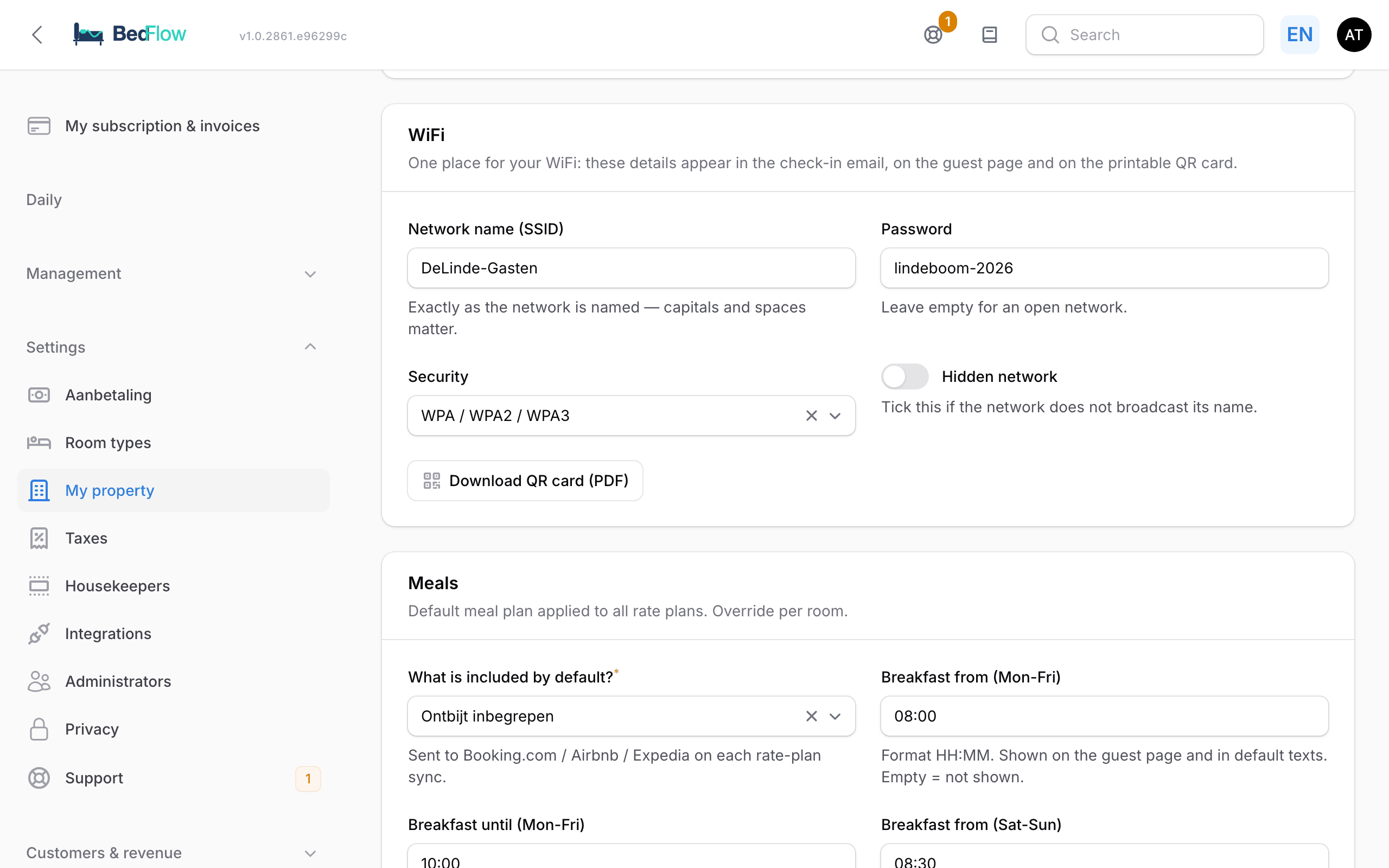
Settings → My property → WiFi section
This is where you enter your network name and password, once. BedFlow uses these details wherever your guest needs wifi, and turns them into a QR card you can print.
Where does your wifi end up?
What you enter here appears:
- in the welcome email on the day of arrival;
- in the default text of the Information section on the guest page (see below);
- in your replies via Daily → Messages, with the variables Wifi and Wifi password, including in the chat with Booking.com and Airbnb guests;
- on the printable QR card.
What you fill in
| Field | Explanation |
|---|---|
| Network name (SSID) | Exactly as the network is called: capitals and spaces count. |
| Password | Leave empty for an open network. |
| Security | WPA / WPA2 / WPA3 (the usual case), WEP for old installations, or Open network (no password). |
| Hidden network | Tick this if your router doesn't broadcast its name. |
Then click Save changes.
The QR card
Below the fields you'll find the Download QR card (PDF) button. You get an A5 card with your logo, your brand colour, the QR code and, below it, the network name and password written out in full. The instructions are printed on it in four languages (Dutch, English, French, German).
Print the card and put it up in the room. The guest scans it with the regular camera app and is connected to the network straight away, without having to type a password full of capitals and dashes. This works on iPhone and Android without an extra app.
Do you see the message Enter a network name and save first.? Fill in the network name, click Save changes and download the card again.
Changed your password?
- Change the Password field and save. From now on, emails, messages and the QR card use the new password.
- Download the QR card again and replace the old cards in your rooms.
- Check in Management → Guest page whether your wifi is also mentioned in the Information text. That text is freely editable and doesn't update itself: change the password there too. See Guest page editor.
Multiple properties
The wifi belongs to one property. If you have several properties, each property enters its own wifi and gets its own card. The network of one property never appears with another.