Automated messages — the guest journey
Updated on 2026-10-01
Management → Messages → Automated messages
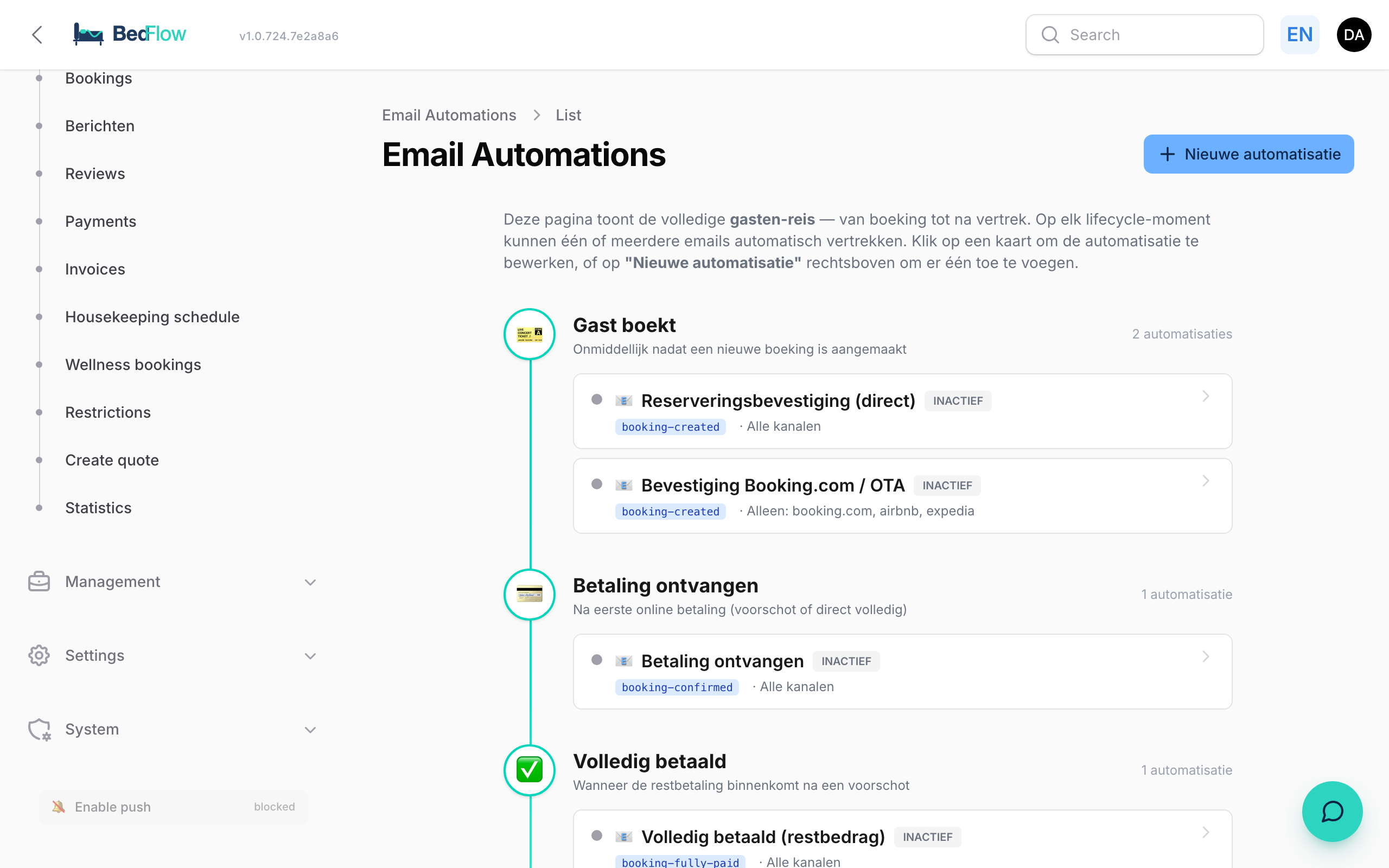
This page shows, in a single timeline, which messages your guests receive automatically: from the moment they book until after they leave. Emails and WhatsApp messages are grouped together per moment. You can see at a glance where a message goes out and where nothing happens.
You edit the texts themselves in the tab next to it, Message templates. See Message templates: the texts of your emails.
How to read the timeline
Each stop on the timeline is a moment in the stay. To the right of the title you can see how many messages go out at that moment.
| Moment | When |
|---|---|
| Guest books | Immediately after a booking is created |
| Payment received | After the first payment (a deposit or the full amount at once) |
| Paid in full | When the remaining balance comes in after a deposit |
| X days before arrival | At 09:00, the chosen number of days before arrival. 2 days before arrival and Arrival day are always there |
| X hours before payment deadline | The chosen number of hours before an unpaid booking expires |
| Booking expires | When the payment deadline passes without payment |
| Booking cancelled | After a cancellation by you or the guest |
| X days after departure | At 09:00, the chosen number of days after the departure day |
Each moment has cards underneath it:
- Email card (white, with an envelope): the name of the automation, the template key (e.g.
booking-created) and which bookings it applies to, e.g. "Only: direct, website" or "All except: booking.com, airbnb". A green dot means active. A grey dot and the label inactive mean paused. The label no payment link appears when the email doesn't show a payment button. - WhatsApp card (green, with the label WhatsApp): a built-in WhatsApp message. The label customised means you changed the text yourself.
If nothing is set for a moment, you see No message configured for this moment. Click an email card to edit the automation, or a WhatsApp card to change its text.
Below the timeline there are three more blocks:
- Wellness journey: only if your property offers wellness. Wellness-only guests get their own WhatsApp messages (booked with a payment link, paid, added to a stay, expired, balance reminder after the session).
- Quick buttons in the planner: the ready-made texts behind the buttons in a booking's WhatsApp window (Room ready, Checkout, Breakfast and, with wellness, Wellness). These are never sent automatically.
- Team messages: WhatsApp messages to your cleaning staff (the daily overview and the personal link). Not guest communication.
What you start with: the default set
Every new property immediately gets eight automated emails. You can edit, pause or add to them.
| Card | Moment | For which bookings |
|---|---|---|
| Booking confirmation (direct) | Guest books | Direct bookings: via your website, and the bookings you enter yourself |
| Booking.com / OTA confirmation | Guest books | Bookings via Booking.com, Airbnb, Expedia (see below) |
| Payment received | Payment received | All, except bookings via those channels |
| Payment reminder | 7 days before arrival | All, except bookings via those channels |
| Payment reminder (24h before deadline) | 24 hours before payment deadline | All, except bookings via those channels |
| Pre-arrival info | 2 days before arrival | All |
| Booking expired (not paid) | Booking expires | All |
| Cancellation confirmation | Booking cancelled | All |
Missing one of these cards, for example the Payment reminder (24h before deadline) in an older account? Add it yourself with New automation (see below): trigger X hours before payment deadline, Number of hours 24, template Payment Reminder.
Bookings via Booking.com, Airbnb and other channels
The Booking.com / OTA confirmation card is switched on by default, but at the moment it only goes out in one case: for a channel for which you chose Online prepayment required (see Payment handling per channel). In that case, this is the email with the payment link.
For other bookings via a channel, BedFlow doesn't send its own confirmation at the time of booking: the channel confirms the booking itself. Your guest then first hears from you through the Pre-arrival info (email) and the pre-arrival WhatsApp, two days before arrival. If you still want to send a guest a confirmation from you straight away, use Send email on the booking (see below).
Not in the default set
Two messages you switch on yourself if you want them:
- Welcome email on the arrival day: trigger X days before arrival, Number of days 0, template Check-in Welcome. The email goes out at 09:00 with the check-in times, your parking instructions, your wifi and the link to the guest page.
- Review request after the stay: trigger X days after departure (e.g. 1), template Review Request. First fill in your Review link under Message templates, otherwise this email won't go out. See Review request after the stay.
WhatsApp on the timeline
The WhatsApp messages are built in: you don't create them yourself and you don't switch them on or off separately. You can, however, change their text via Message templates. See Editing WhatsApp templates.
| WhatsApp message | When |
|---|---|
| Payment received (in full) / Deposit received | After a payment, with the remaining balance in the case of a deposit |
| Pre-arrival | At 10:00, two days before arrival, with the check-in times and the link to the guest page |
| Welcome on the arrival day | At 09:05 on the arrival day, just after the welcome email |
| Welcome at the front desk | When you click Check in yourself |
| Booking expired | When an unpaid booking expires |
| Booking cancelled | After a manual cancellation in the planner |
Good to know:
- WhatsApp messages only go out if your property has a WhatsApp connection and the guest has a mobile number. See WhatsApp via TextMeFlow.
- Welcome on the arrival day follows your welcome email: if there is no active automation with the Check-in Welcome template on the arrival day, that WhatsApp message doesn't go out at 09:05 either. At check-in, the guest does receive Welcome at the front desk.
- If a number has no WhatsApp, BedFlow remembers this and doesn't try again every day. The arrival tile in Daily → Availability then shows no WhatsApp, and at check-in you can enter a different number.
Adding a new automation
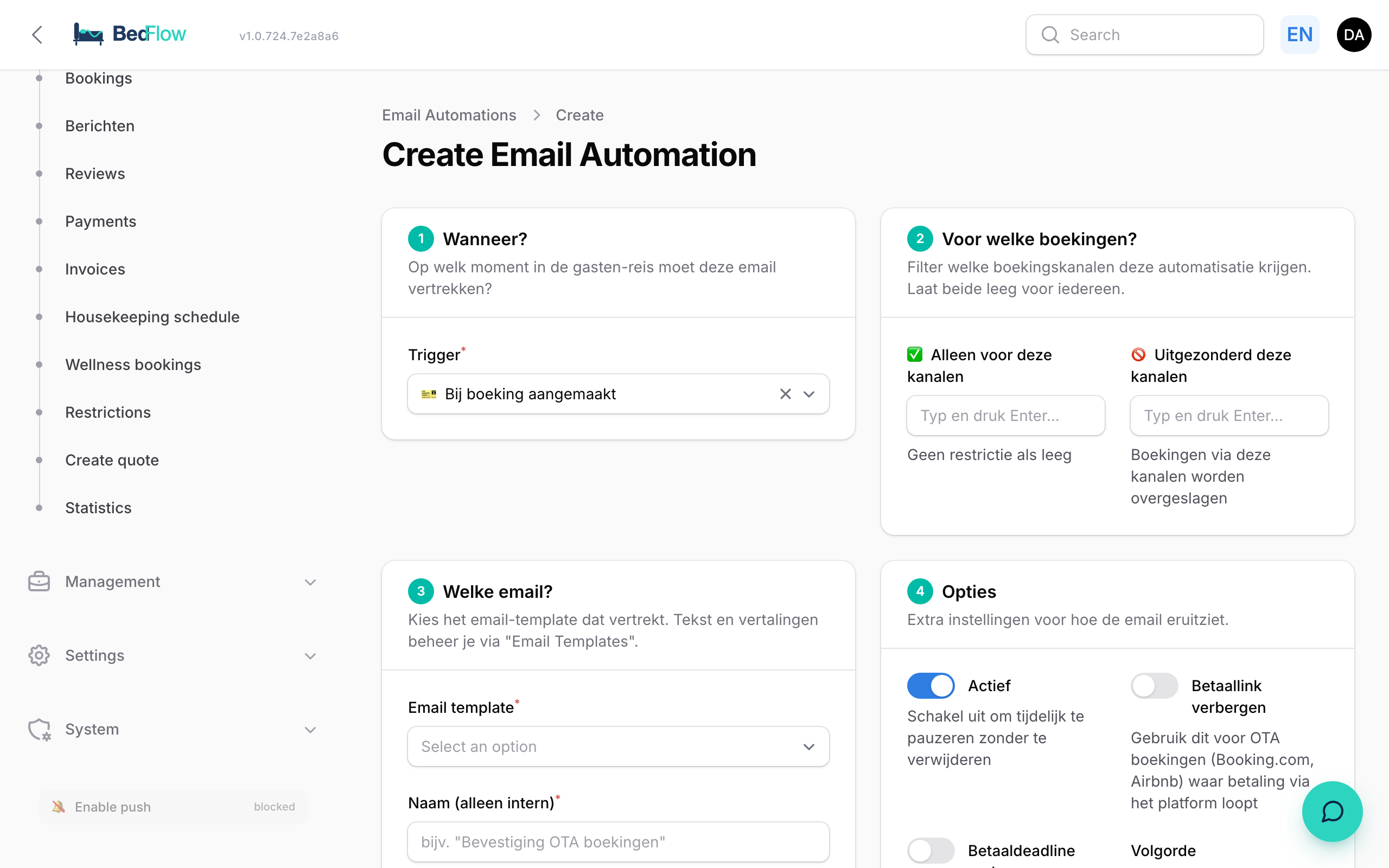
- Click New automation at the top right.
- 1 When? Choose the Trigger. For "X days", fill in the Number of days (0 = the arrival or departure day itself); for "X hours before payment deadline", the Number of hours.
- 2 For which bookings? Leave both fields empty to reach all bookings. Or narrow it down with Only for these channels or Except these channels. Type a channel and press Enter; BedFlow suggests the channels, e.g.
direct,website,phone,booking.com,airbnb,expedia. - 3 Which email? Choose the Email template and give it a Name (internal only). The guest doesn't see this name.
- 4 Options Switch on Active (on by default). Use Hide payment link and Hide payment deadline for bookings that have already been paid through the channel. Order determines which card comes first for the same moment.
- 5 Summary shows in one sentence what is going to happen, for example "X days after departure → send Review Request".
- Click Create.
The triggers in the form:
| Trigger | Moment on the timeline |
|---|---|
| On booking created | Guest books |
| On (first) payment received | Payment received |
| On full payment (remaining balance) | Paid in full |
| X days before arrival | X days before arrival / Arrival day |
| X hours before payment deadline | X hours before payment deadline |
| On booking expired (not paid) | Booking expires |
| On cancellation | Booking cancelled |
| X days after departure | X days after departure |
You can't create a template of your own: you always choose an existing template and adjust its text under Message templates.
Pausing, editing or deleting
- Pause: open the card, switch off Active and click Save changes. An inactive automation sends nothing.
- Edit: open the card, make your changes and click Save changes.
- Delete: open the card and click Delete at the top right.
Rules BedFlow enforces itself
- Each email only once. The same automation goes out only once per booking.
- Last-minute bookings. If someone books only after the moment of an "X days before arrival" message (e.g. arrival the day after tomorrow, message 7 days in advance), BedFlow catches up on the message as soon as the booking is final: on creation if it is confirmed, otherwise on the first payment. That way a last-minute guest also gets their pre-arrival info.
- No payment reminder after the fact. A payment reminder is never sent late: the guest has just received the payment link in their confirmation. If you want a reminder shortly before the deadline, use X hours before payment deadline.
- No payment reminder when there is nothing to pay. If the booking has already been paid, or the channel collects the payment (see Payment handling per channel), no reminder goes out. Once the arrival day has been reached, no deadline reminder goes out either.
- No confirmation after departure. If you record a payment on or after the departure day, the guest no longer gets a "payment received" email. A manually recorded payment before departure does send that email.
- Nothing "before arrival" after check-in. If the guest has already checked in, no late pre-arrival email goes out any more.
- Cancelled = silent. A cancelled booking no longer gets any automated messages (except the cancellation confirmation).
- No email address. If the guest has no email address, nothing goes out. In the Communication log you then see a line Failed with the reason.
Sending (or resending) a single email by hand
Did a guest not receive an email, or did you only get their email address later? Open the booking and choose Send email. You'll find this action on the booking details, on the edit screen and in the row menu in Daily → Bookings.
- Under Template, choose one of your property's automations.
- Check the address under To. You can change it; the booking itself stays unchanged.
- Click Send now.
The email goes out immediately, in the guest's language, even if it was sent before. BedFlow does, however, block a payment reminder for a booking that has been paid.
Frequently asked questions
Why didn't my Booking.com guest receive a confirmation from BedFlow? Because the channel confirms the booking itself. At the time of booking, BedFlow only sends an email if the channel is set to Online prepayment required. See the section "Bookings via Booking.com, Airbnb and other channels" above.
My guest didn't get the welcome WhatsApp at 09:05. Check whether there is an active automation with Check-in Welcome on the arrival day. Without that email, the WhatsApp message doesn't go out either. Also check whether the guest has a mobile number and whether your WhatsApp is connected.
Where can I see which emails actually went out? In Management → Insights → Communication log, tab Email. See Finding sent emails.